How to Master Android Text‑to‑Speech: A Simple Tutorial
What Android Text‑to‑Speech Actually Does
Android’s Text‑to‑Speech (TTS) engine turns written strings into spoken words, letting apps read notifications, guide users through steps, or simply add a voice to a game. The service runs locally on the device, so no internet connection is required once the language data is installed. Because it’s part of the Android framework, you can access it with only a few lines of Java or Kotlin, yet the API offers enough depth for fine‑tuned control over pitch, speed, and locale.
Preparing Your Project
Before you write any code, make sure the project is set up to use the TTS library. The core classes live in android.speech.tts, which is already part of the SDK, but you’ll need to declare the appropriate permission if you plan to download additional voice data at runtime.
- Add android.permission.INTERNET to the AndroidManifest.xml if you want the engine to fetch missing language packs.
- Target API level 21 or higher for the most stable TTS behavior across devices.
- Consider using androidx.appcompat:appcompat to keep UI components consistent when you later add a settings screen.
Once the manifest is ready, sync the Gradle files and you’re good to go.
Initializing the TTS Engine
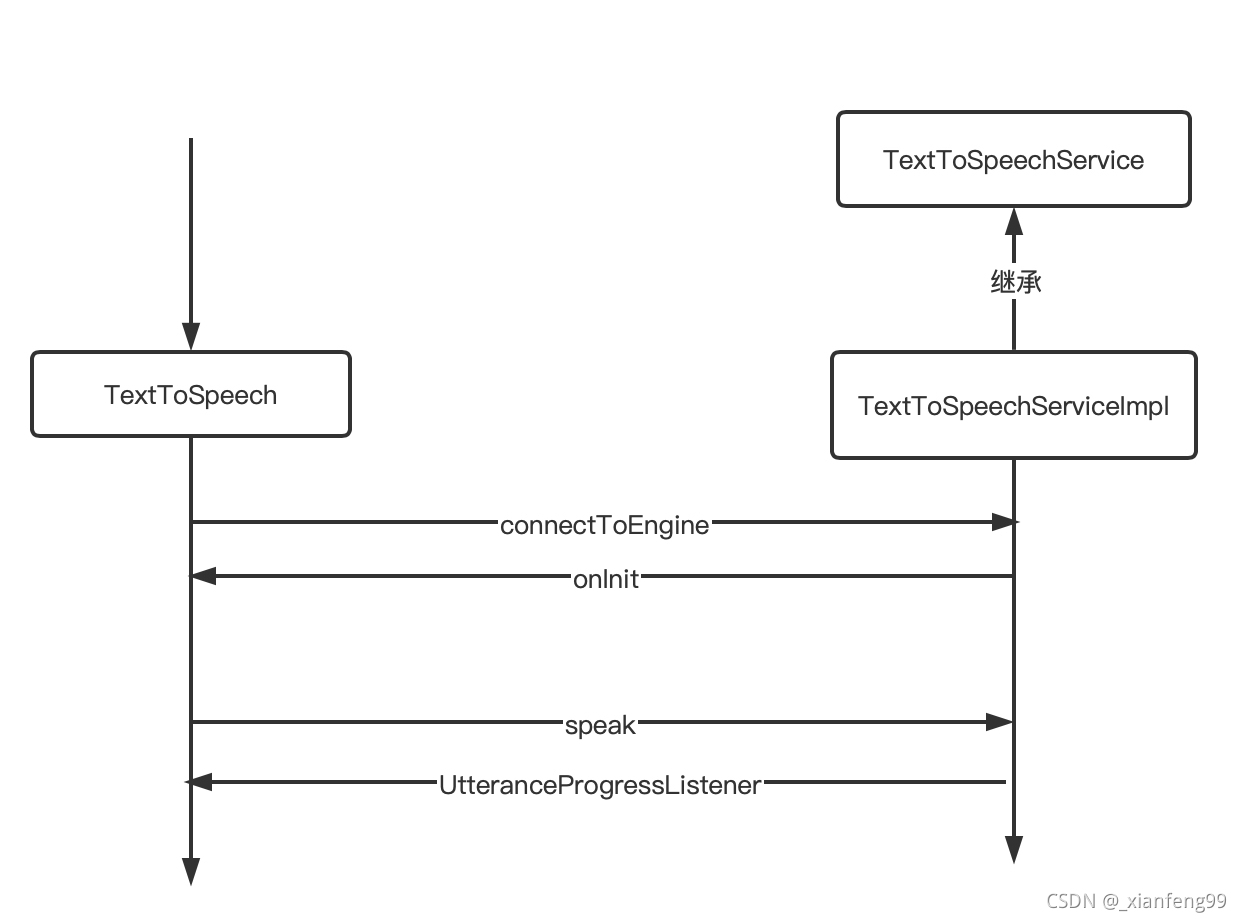
The first step in any TTS workflow is creating a TextToSpeech object. Do this inside onCreate() of your activity, passing the current Context and an OnInitListener. The listener notifies you when the engine is ready, which is the only safe moment to start speaking.
Typical initialization looks like this: you call new TextToSpeech(this, status -> { … }). Inside the lambda, check whether status == TextToSpeech.SUCCESS. If it is, you can set the default language; otherwise, you should alert the user that speech synthesis isn’t available on that device.
Speaking Text with a Single Call
After the engine signals readiness, speaking is as easy as invoking speak(). Provide the text, a queue mode (usually QUEUE_FLUSH to replace any ongoing speech), and a null bundle for the simplest case. For example, tts.speak("Welcome to the app", TextToSpeech.QUEUE_FLUSH, null, "welcomeId") will read the phrase immediately.
If you need to play several sentences back‑to‑back, switch to QUEUE_ADD and give each call a unique utterance ID. Those IDs let you monitor progress through the UtteranceProgressListener, which can be useful for highlighting text as it’s spoken.
Adjusting Pitch, Rate, and Language
The TTS engine lets you shape the voice to match your app’s personality. Two properties are most commonly tweaked: pitch (how high or low the voice sounds) and speech rate (how fast words are uttered). Both accept a float where 1.0 is the default.
- Pitch:
tts.setPitch(0.8f)gives a slightly deeper tone, while1.2fmakes the voice brighter. - Rate:
tts.setSpeechRate(1.5f)speeds up narration for short alerts; for longer tutorials, a slower rate like0.9fimproves comprehension. - Language: Use
tts.setLanguage(Locale.US)for American English, or switch toLocale.UK,Locale.FRANCE, etc., depending on the user’s preference. Remember to callisLanguageAvailable()first, because not every device ships with every locale.
Experimenting with these values during development helps you find a balance that feels natural across different screen readers and accessibility tools.
Managing the Engine’s Lifecycle
Because TTS holds system resources, you should release it when your activity is no longer visible. Call tts.stop() in onPause() to halt any ongoing speech, and invoke tts.shutdown() in onDestroy() to free the underlying engine. Skipping these steps can lead to memory leaks and, on some devices, a “speech stuck” bug that persists after the app exits.
If your app needs to pause speech briefly—say, while a dialog appears—use tts.pause() (available on newer API levels) or simply stop and later resume with the same utterance ID.
Debugging Common Issues
Even with a straightforward API, developers often run into hiccups. Below are a few recurring problems and quick fixes.
- Language not supported: Check
isLanguageAvailable()before setting a locale. If the result isLANG_MISSING_DATAorLANG_NOT_SUPPORTED, prompt the user to install the missing voice pack via an Intent to the Google Play TTS data page. - Speech sounds garbled or too fast: Verify that you haven’t unintentionally altered the speech rate or pitch elsewhere in your code. Reset them to
1.0fbefore testing. - App crashes on older devices: Some legacy Android versions lack the
UtteranceProgressListeneroverload that includes an utterance ID. Guard those calls with a version check (Build.VERSION.SDK_INT >= Build.VERSION_CODES.ICE_CREAM_SANDWICH_MR1). - No audio output at all: Ensure the device volume for “media” is up, and that you’re not routing audio to a Bluetooth device that’s disconnected.
FAQ
Can I use Android Text‑to‑Speech without internet?
Yes. Once the required language pack is installed on the device, the engine works entirely offline. Internet is only needed to download additional voices.
How do I detect when speech has finished?
Attach an UtteranceProgressListener to your TextToSpeech instance and override onDone(String utteranceId). This callback fires as soon as the utterance completes, letting you chain actions or update the UI.
Is it possible to change the voice’s gender?
On many devices the default engine offers only a single voice per language. Some manufacturers provide extra voices that can be selected via setVoice() if they appear in tts.getVoices(). Otherwise you’ll need to rely on third‑party TTS services.
What’s the best practice for handling user‑initiated speech?
Provide a clear toggle in your UI, respect the device’s accessibility settings, and always allow the user to stop speech instantly with a button that calls tts.stop(). This keeps the experience pleasant for both sighted and visually‑impaired users.