Why Your Phone Shows the Wrong Location and How to Fix It
What Causes a Phone’s GPS to Miss the Mark?
When you open a maps app and the pin lands miles away from where you’re actually standing, the first thought is often “my phone is broken.” In reality, a handful of ordinary factors—software settings, hardware quirks, or even the environment—can throw the GPS signal off course. Understanding why your phone's location is wrong is the first step toward a reliable fix.
Quick Checks Before Diving Deeper
Before you start tweaking system files, run through these basic steps. They take only a minute each and solve most everyday glitches.
- Restart the device. A fresh boot forces the GPS chip to reacquire satellites.
- Toggle location services. Turn off “Location” in settings, wait a few seconds, then turn it back on.
- Update your OS and apps. Recent patches often include improvements to the location stack.
Enable High‑Accuracy Mode (Android) or Precise Location (iOS)
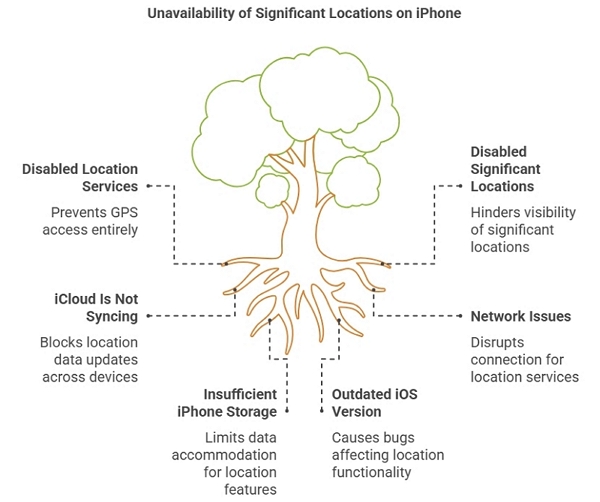
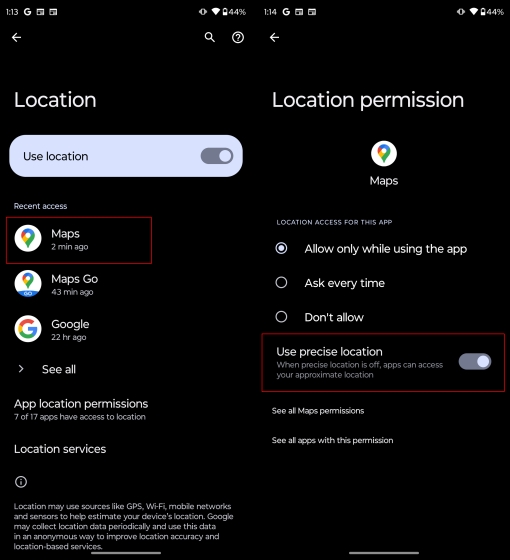
Both platforms offer a “high‑accuracy” setting that fuses GPS, Wi‑Fi, Bluetooth, and cellular data. On Android, you’ll find it under Settings → Location → Advanced → Google Location Accuracy. On iOS, the equivalent is Settings → Privacy → Location Services → System Services → Precise Location. Leaving these options on ensures the phone uses every signal source it can find.
Check for Obstructions and Interference
GPS satellites orbit high above the Earth, so they need a clear line of sight. Tall buildings, dense foliage, or even a metal roof can degrade the signal dramatically. If you notice the location drifting only indoors, step outside for a moment; the pin should snap back to the correct spot.
Calibrate the Compass
Many positioning errors stem from an uncalibrated magnetometer. To recalibrate, simply wave your phone in a figure‑8 motion several times. You’ll often see a compass animation confirming the adjustment. This tiny ritual can shave off several meters of error, especially when using navigation apps that rely on both GPS and heading data.
Reset Network Settings
Cellular towers assist GPS by providing timing information. Corrupted network settings can mislead the phone about which towers are nearby. On iOS, go to Settings → General → Reset → Reset Network Settings. Android users can find a similar option under System → Reset → Reset Wi‑Fi, mobile & Bluetooth. Remember that you’ll need to re‑enter Wi‑Fi passwords afterward.
Clear Cached Location Data
Over time, apps store outdated location caches that may override fresh satellite readings. Deleting the cache for Google Maps (Android) or resetting the location & privacy settings (iOS) forces the system to fetch a clean set of data. This step is especially useful after a software update.
Inspect Battery‑Saving Features
Power‑saving modes often limit background GPS usage to extend battery life. If you’ve enabled a low‑power mode, the device may intentionally reduce the frequency of location checks, resulting in lag or drift. Turn off battery saver while you need precise positioning, then switch it back on later.
Update or Reinstall Map Applications
Sometimes the fault lies not with the phone’s hardware but with the app itself. An outdated version of Google Maps, Apple Maps, or a third‑party navigation tool can misinterpret satellite data. Updating through the Play Store or App Store, or reinstalling the app entirely, often resolves stubborn inaccuracies.
When Hardware Is the Culprit
If none of the software solutions help, the GPS antenna may be damaged. Dropping the phone, exposure to water, or a faulty internal connection can impair signal reception. A quick diagnostic—opening a GPS status app like “GPS Test” (Android) or “GPS Status & Toolbox” (iOS)—will show satellite count and signal strength. Consistently low numbers, even outdoors, point toward a hardware issue that usually requires professional repair.
Tips for Improving Accuracy in Real‑World Use
Even a perfectly functioning phone can benefit from a few habits:
- Keep Wi‑Fi turned on; it provides additional reference points.
- Avoid metal cases that can shield the antenna.
- Enable “Wi‑Fi scanning” in Android’s location settings for faster fixes.
- Use offline maps in areas with weak cellular coverage.
Frequently Asked Questions
- Why is my phone showing the wrong location? Most often, it’s a combination of disabled high‑accuracy mode, signal obstruction, or outdated software. Rarely, a hardware fault is to blame.
- How do I reset GPS on an iPhone? Turn off Location Services, restart the device, then turn Location Services back on. If the issue persists, reset all settings under Settings → General → Reset → Reset All Settings.
- Can Wi‑Fi improve GPS accuracy on Android? Yes. When Wi‑Fi is enabled, the phone can use nearby networks as supplementary location beacons, sharpening the pinpoint.
- What should I do if my GPS still won’t lock after all these steps? Run a GPS diagnostic app. If satellite count stays low outdoors, contact a repair shop; the antenna may need replacement.