Simple Step‑by‑Step Guide to Install Ngrok on Termux
If you’ve ever wanted to expose a local server running on your Android phone, Ngrok is the tool that makes it painless. Paired with Termux—a terminal emulator that brings a full Linux environment to Android—you can tunnel HTTP, TCP, or even TLS traffic without rooting your device. This guide walks you through every command you’ll need, from preparing Termux to launching your first Ngrok tunnel.
What is Ngrok and Why Use It on Termux?
Ngrok creates a secure tunnel from the public internet to a port on your local machine. It’s popular among developers testing webhooks, showcasing demos, or simply accessing a personal site while on the move. Running Ngrok inside Termux gives you a portable, lightweight setup that works even when you’re far from a traditional laptop.
Prerequisites Before You Begin
- A recent Android device (Android 8.0+ works best).
- Termux installed from F‑Droid or the Play Store.
- Internet connection for downloading the Ngrok binary.
- An Ngrok account (free tier is sufficient for basic tunnels).
Make sure Termux has storage permissions; you’ll need them to place the Ngrok binary where you can run it.
Step 1: Update Termux and Install Core Packages
Open Termux and run the following commands. They refresh the package index and install utilities that Ngrok relies on.
pkg update && pkg upgrade -ypkg install wget unzip -y
The wget tool fetches files from the web, while unzip extracts the Ngrok archive.
Step 2: Download the Correct Ngrok Binary
Ngrok offers separate builds for ARM, ARM64, and x86 architectures. To find out which one matches your device, execute:
uname -mTypical outputs are aarch64 (ARM64) or armv7l (32‑bit ARM). Then download the matching zip file. For most modern phones, the ARM64 version works:
wget https://bin.equinox.io/c/4VmDzA7iaHb/ngrok-stable-linux-arm64.zip -O ngrok.zipIf your device reports armv7l, replace arm64 with arm in the URL.
Step 3: Extract and Move Ngrok to a Global Location
Unzip the archive and place the executable in $PREFIX/bin, which is already in Termux’s PATH.
unzip ngrok.zipmv ngrok $PREFIX/bin/
chmod +x $PREFIX/bin/ngrok
rm ngrok.zip
Now typing ngrok from any directory should display the help message.
Step 4: Authenticate Your Ngrok Account
Ngrok requires an auth token to link your tunnels to your account. Grab the token from the Ngrok dashboard (Dashboard → Auth → Copy).
ngrok config add-authtoken YOUR_AUTH_TOKENReplace YOUR_AUTH_TOKEN with the string you copied. This step also creates a ~/.ngrok2 configuration folder where future settings are stored.
Step 5: Launch Your First Tunnel
Suppose you have a simple Python HTTP server running on port 8000:
python -m http.server 8000Open another Termux session (swipe from the left edge) and run:
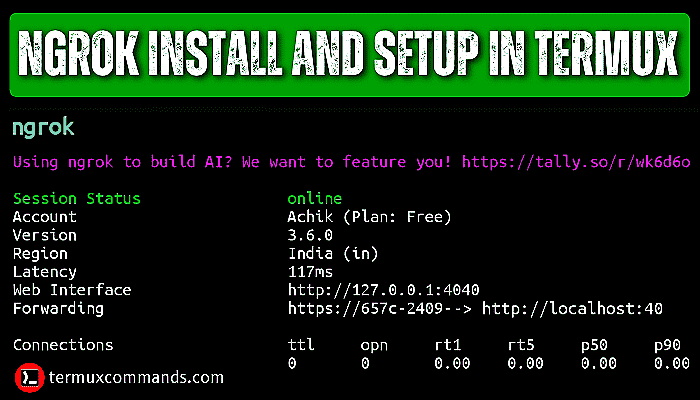
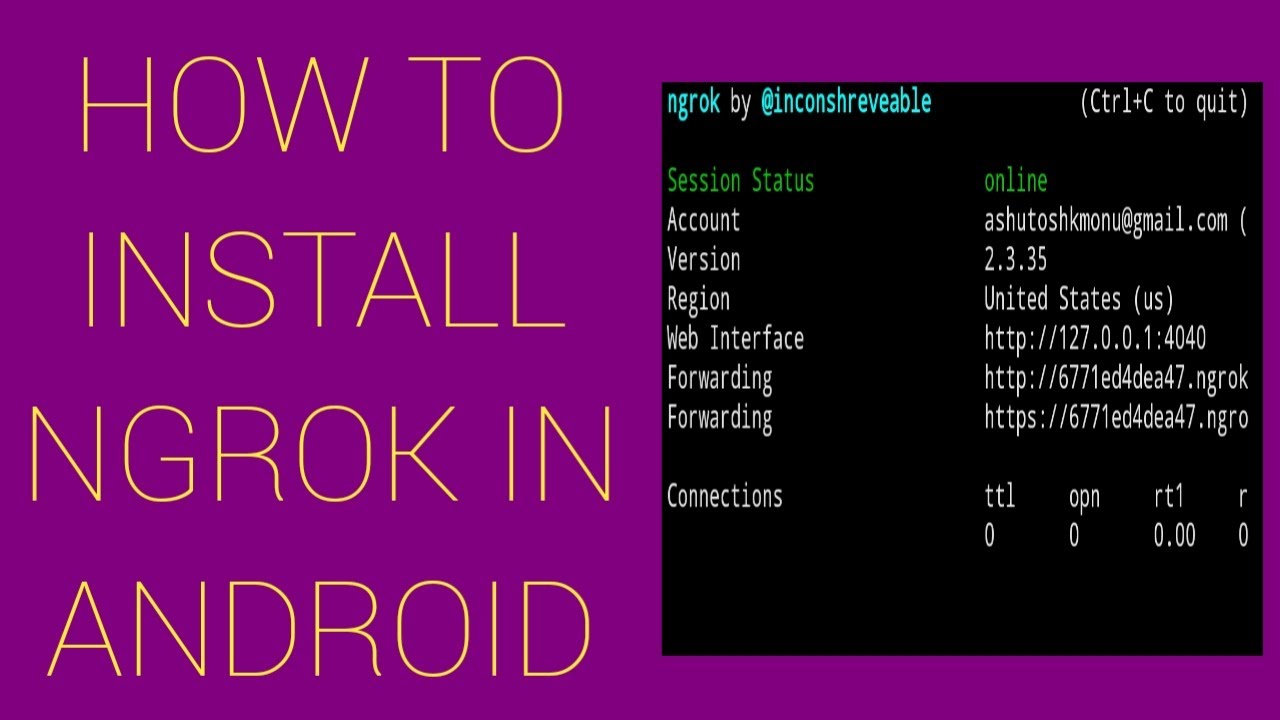
ngrok http 8000Ngrok will output a forwarding URL that looks like https://abcd1234.ngrok.io. Visit that address from any browser, and you’ll see the content served by your phone.
Troubleshooting Common Issues
- “ngrok: command not found” – Ensure you moved the binary to
$PREFIX/binand gave it execute permission. - Connection timed out – Check that your phone isn’t behind a strict carrier NAT or VPN that blocks outbound connections.
- “Error while loading shared libraries” – This usually means you downloaded the wrong architecture. Verify
uname -mand redownload the appropriate zip.
Most problems resolve by re‑checking the architecture and confirming that Termux has network access (run ping -c 1 google.com to verify).
Advanced Tips for Power Users
Once you’re comfortable with the basics, you can explore Ngrok’s config file to predefine tunnels, enable custom subdomains (paid feature), or set up TCP tunnels for services like SSH. For example, adding the following to ~/.ngrok2/ngrok.yml creates a persistent tunnel:
tunnels:web:
proto: http
addr: 8000
Then start it with ngrok start web. This approach keeps your command line tidy, especially if you run multiple tunnels.
FAQ
Can I use Ngrok on a non‑rooted Android device?
Yes. Termux runs entirely in user space, so no root access is required. The only limitation is the device’s network environment; some carrier firewalls may block outbound tunnels.
Do I need to keep Termux open for the tunnel to stay active?
Exactly. The tunnel lives as long as the Ngrok process runs. If you close the Termux session, the tunnel ends. Consider using tmux or nohup to keep it alive in the background.
Is the free Ngrok tier enough for occasional testing?
For occasional HTTP or TCP tunnels, the free tier’s single concurrent tunnel and randomly generated subdomain are usually sufficient. If you need custom domains or multiple tunnels, a paid plan is required.
What alternatives exist if Ngrok isn’t available?
Other tunneling services like localtunnel, serveo, or cloudflared can be installed in Termux, but they often lack the ease of use and reliability Ngrok provides.

![How to install Ngrok in Termux [100% Working] | Updated | #ngrok | # ...](https://i.ytimg.com/vi/pG5b6n6yr3Q/maxresdefault.jpg)