Mastering Scopus Advanced Search: Boost Your Research
When you dive into the sea of scholarly literature, the difference between a vague query and a razor‑sharp one can mean hours saved or missed citations. Scopus Advanced Search gives you the levers to filter, combine, and pinpoint exactly what you need—provided you know how to pull them. Below, we walk through the most practical tricks, from field tags to proximity operators, so your next literature review feels less like treasure hunting and more like a well‑planned expedition.
Why Advanced Search Matters in Scopus
The basic keyword box is fine for a quick skim, but it treats every term as a loose match. Advanced Search, on the other hand, lets you tell Scopus how each term should behave—whether it belongs in the title, the abstract, or the author‑affiliation field. This precision trims down irrelevant hits, improves reproducibility, and makes it easier to justify your search strategy in grant applications or systematic reviews.
Key Building Blocks: Fields and Boolean Logic
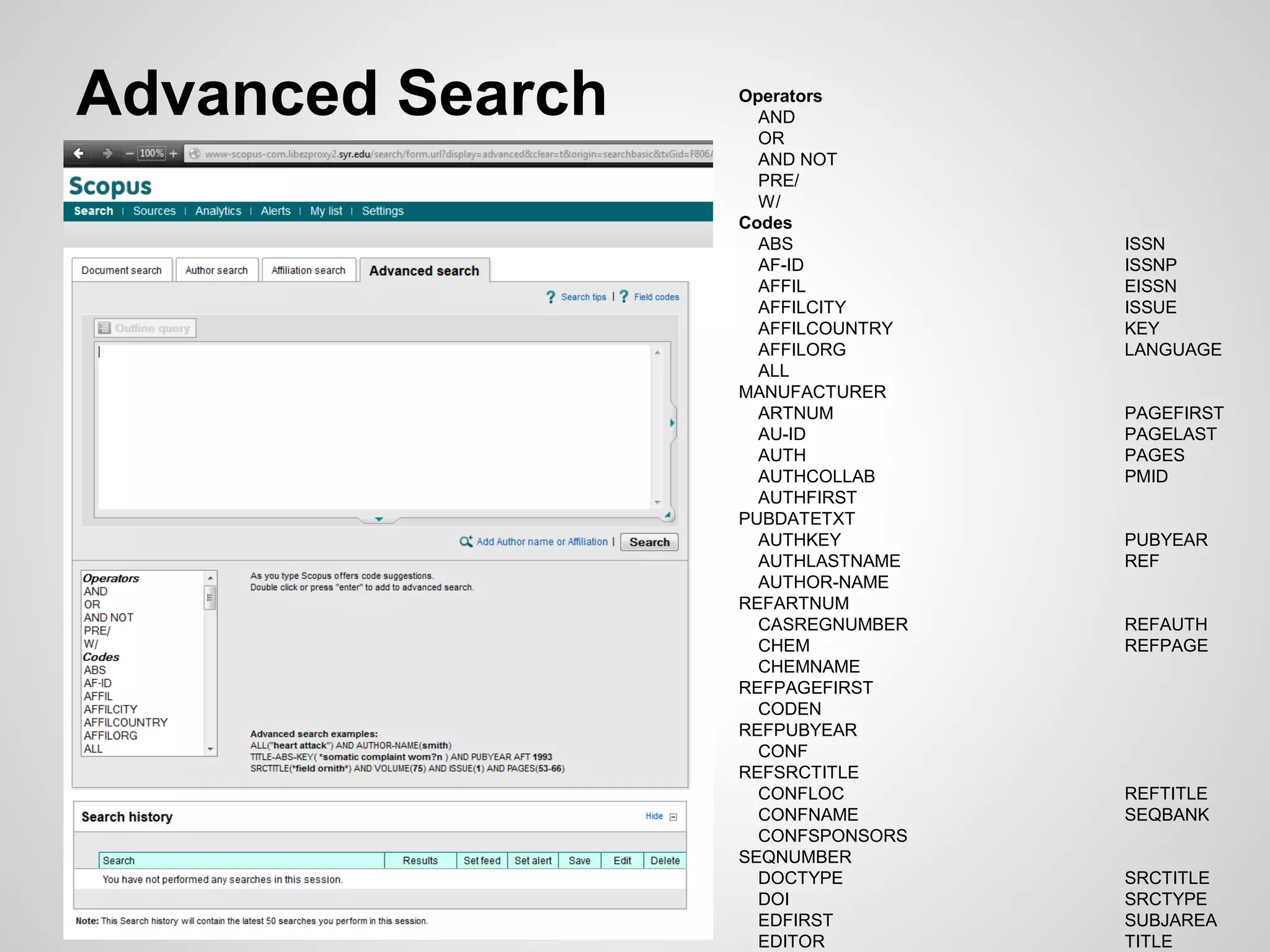
At the heart of any sophisticated query are two ingredients: field codes and Boolean operators. Scopus uses a concise set of field tags—AUTH for author name, TITLE for article title, ABS for abstract, and AFFIL for institutional affiliation, among others. Pair these with AND, OR, and NOT to shape the logical skeleton of your search.
- AND narrows results by requiring all connected terms.
- OR broadens the net, useful for synonyms (e.g., “cancer OR neoplasm”).
- NOT excludes unwanted concepts (e.g., “climate change NOT agriculture”).
Remember to wrap each field‑specific clause in parentheses when mixing operators; otherwise Scopus might evaluate the expression in an unintended order.
Crafting Precise Queries with Proximity and Truncation
Sometimes you know two words belong together, but you’re not sure how far apart they appear. The W/n operator (where “n” is the maximum word distance) handles this gracefully. For instance, (TITLE-ABS-KEY("gene W/3 therapy")) fetches records where “gene” and “therapy” are within three words of each other, catching phrases like “gene‑based therapy” or “therapy for gene editing”.
Truncation with the asterisk (*) captures word stems. Searching educat* returns “education”, “educational”, “educator”, and so on. Combine truncation with field tags to avoid over‑inflating results; ABS(educat*) limits the stem to the abstract, steering clear of titles that merely mention the word in passing.
Saving, Exporting, and Monitoring Your Results
Once you’ve honed a query that feels just right, click “Save Search” to bookmark it within your Scopus account. This not only preserves the exact syntax but also allows you to set up email alerts for new records matching the same criteria—perfect for keeping pace with fast‑moving fields.
Export options are equally flexible. Choose between CSV for spreadsheet analysis, RIS for reference managers like EndNote, or BibTeX for LaTeX users. When exporting, consider selecting “Include citations” if you plan to map the citation network later; Scopus will embed the cited‑by count directly into the file.
Common Pitfalls and How to Avoid Them
Even seasoned researchers stumble over a few recurring issues. One is neglecting the default “AND” behavior of the basic search box, which can unintentionally filter out relevant papers if you type multiple terms without operators. Another is over‑using truncation—cancer* might pull in “cancernutrition” (a typo) alongside the intended hits.
Lastly, be wary of date limits. Scopus defaults to the most recent 10 years unless you specify a range with the PUBYEAR field. A query like PUBYEAR > 2015 AND PUBYEAR < 2023 ensures you’re looking at a contemporary slice without missing late‑2022 publications that sometimes slip through the cracks.
Putting It All Together: A Sample Workflow
Suppose you’re investigating the impact of renewable energy policies on urban air quality. A solid advanced query could look like this:
(TITLE-ABS-KEY("renewable energy" OR "green power")AND TITLE-ABS-KEY("air quality" W/5 urban)
AND PUBYEAR > 2018)
AND AFFIL("University*")
This string does three things: it captures both “renewable energy” and its synonym “green power”, forces “air quality” to appear within five words of “urban”, limits the search to papers published after 2018, and restricts results to authors affiliated with any university‑named institution. Running the query, saving it, and setting an alert will give you a living, up‑to‑date bibliography.
Frequently Asked Questions
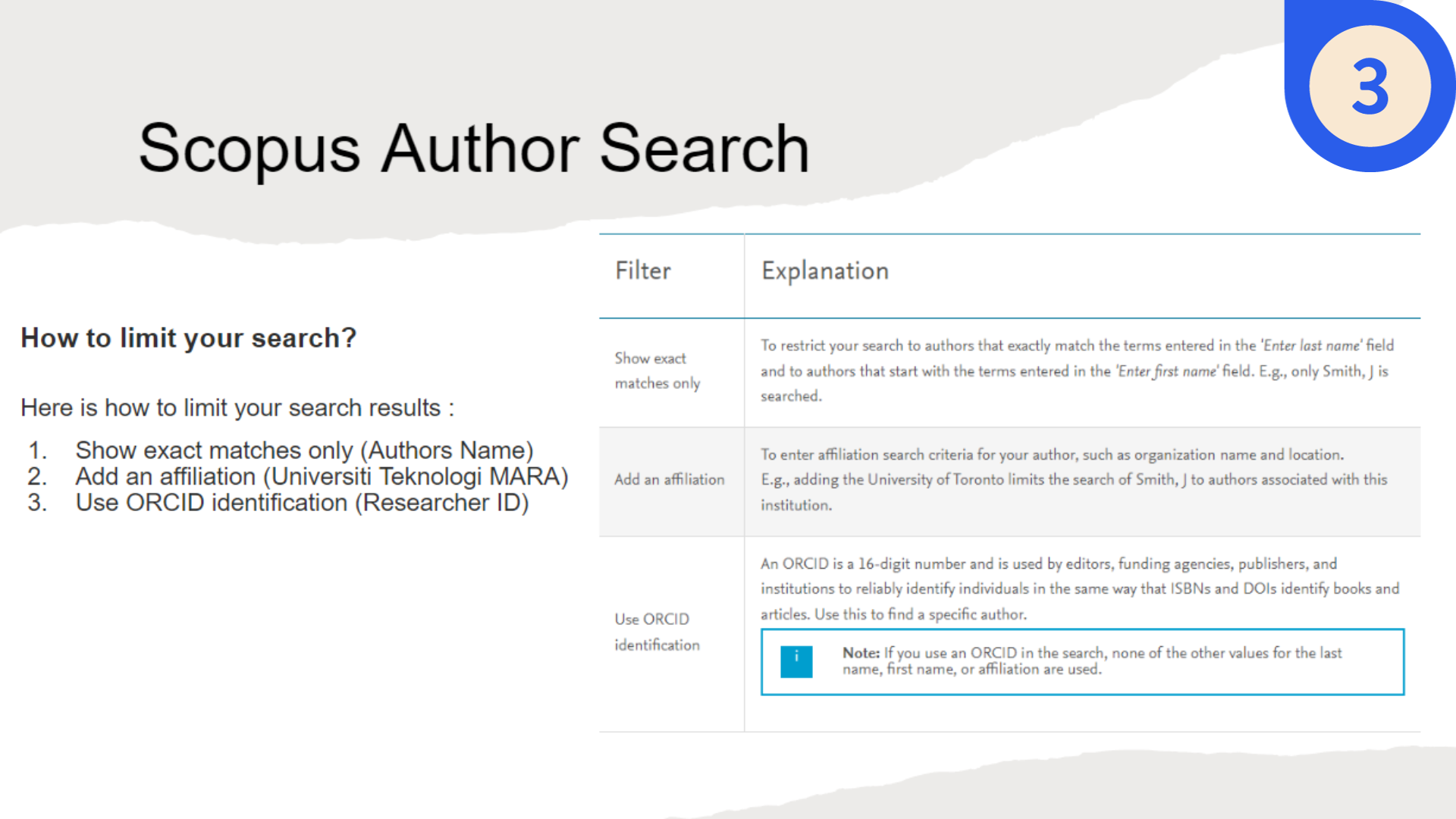
Can I search for authors with multiple affiliations in Scopus?
Yes. Use the AUTH field together with the AND or OR operator, and combine it with AFFIL. For example, AUTH("Smith J") AND (AFFIL("Harvard") OR AFFIL("MIT")) returns papers where that author is listed under either institution.
How do I exclude conference papers but keep journal articles?
Apply the SOURCETYPE field: SOURCETYPE("j") limits results to journals only. Pair it with your main query using AND to maintain all other criteria.
Is there a way to search for articles that have been cited at least a certain number of times?
Scopus doesn’t provide a direct citation‑count filter in the advanced search box, but you can sort results by “Cited by (highest)” after the search. For a more granular threshold, export the results and filter the citation column in your spreadsheet.
Do proximity operators work across different fields?
Proximity operators like W/n apply only within the same field tag. If you need “gene” in the title and “therapy” in the abstract, you must craft two separate clauses and combine them with AND, as cross‑field proximity isn’t supported.