Mastering Google Cloud MySQL with phpMyAdmin: A Practical Guide
Google Cloud’s managed MySQL service, known as Cloud SQL, gives you the reliability of a fully‑hosted database without the headache of manual patching or backups. Pair that with phpMyAdmin—a web‑based interface many developers already love—and you have a powerful yet approachable stack for everything from small prototypes to production‑grade apps. In this guide we’ll walk through provisioning a MySQL instance on Google Cloud, installing phpMyAdmin on a Compute Engine VM, and wiring the two together securely.
Why Choose Google Cloud SQL for MySQL
Google Cloud SQL abstracts away the operational grunt work that traditionally comes with MySQL. Automatic backups, point‑in‑time recovery, and seamless scaling are baked in, meaning you can focus on schema design rather than server maintenance. The service also integrates with Identity‑Aware Proxy (IAP) and Cloud IAM, giving you fine‑grained access control that’s hard to replicate on self‑managed servers.
Setting Up a MySQL Instance on Google Cloud
Getting a Cloud SQL instance up and running is surprisingly straightforward. Follow these steps, and you’ll have a fresh MySQL database ready in under ten minutes.
- Open the Google Cloud Console and navigate to SQL → Create Instance.
- Select MySQL as the database engine, then choose the version you need (8.0 is the current default).
- Pick a region that matches your application’s latency requirements—usually the same region as your Compute Engine VM.
- Configure instance settings: set a strong admin password, enable automatic backups, and decide whether you want high availability (HA) via a multi‑zone replica.
- Click Create. Google Cloud will provision the instance, allocate storage, and assign a private IP address if you enable VPC connectivity.
Once the instance status turns green, note the connection name (project:region:instance) and the IP address—both will be needed later.
Installing phpMyAdmin on Compute Engine
phpMyAdmin runs on a web server, so you’ll need a small Compute Engine VM to host it. A f1‑micro instance is more than enough for occasional admin work, but feel free to scale up if you anticipate heavier traffic.
- Spin up a new VM using the “Debian” or “Ubuntu” image.
- During creation, enable the Allow HTTP traffic firewall rule; you’ll also want Allow HTTPS traffic if you plan to secure the connection with SSL.
- After the VM boots, SSH into it and run:
sudo apt update && sudo apt install apache2 php php-mysql phpmyadmin - When the installer asks for a web server, choose apache2. For the database configuration, select “No” because phpMyAdmin will connect remotely to Cloud SQL.
- Set a dedicated phpMyAdmin login password when prompted; this is separate from your Cloud SQL credentials.
After installation, you can reach phpMyAdmin at http://YOUR_VM_EXTERNAL_IP/phpmyadmin. If you prefer a cleaner URL, you can move the phpMyAdmin directory to /var/www/html and adjust Apache’s config accordingly.
Connecting phpMyAdmin to Your Cloud SQL Instance
Directly exposing the MySQL port to the internet is a security risk, so the recommended approach is to use the Cloud SQL Auth proxy. The proxy establishes an encrypted tunnel from your VM to the managed instance, handling authentication with a service account.
- Create a service account in the Cloud Console with the role Cloud SQL Client. Download the JSON key file.
- On the VM, install the proxy:
wget https://dl.google.com/cloudsql/cloud_sql_proxy.linux.amd64 -O cloud_sql_proxy && chmod +x cloud_sql_proxy - Start the proxy, pointing it at your instance:
./cloud_sql_proxy -instances=PROJECT:REGION:INSTANCE=tcp:3306 -credential_file=PATH/TO/KEY.json & - In phpMyAdmin’s
config.inc.php, set the host to 127.0.0.1 and the port to 3306. Use the Cloud SQL username and password you created earlier.
Now phpMyAdmin talks to MySQL through the local proxy, meaning the traffic never leaves Google’s internal network unencrypted.
Best Practices for Security and Performance
Even with the proxy in place, a few extra steps can tighten security and keep your queries snappy.
- Use SSL/TLS. Enable SSL on the Cloud SQL instance and configure phpMyAdmin to require it.
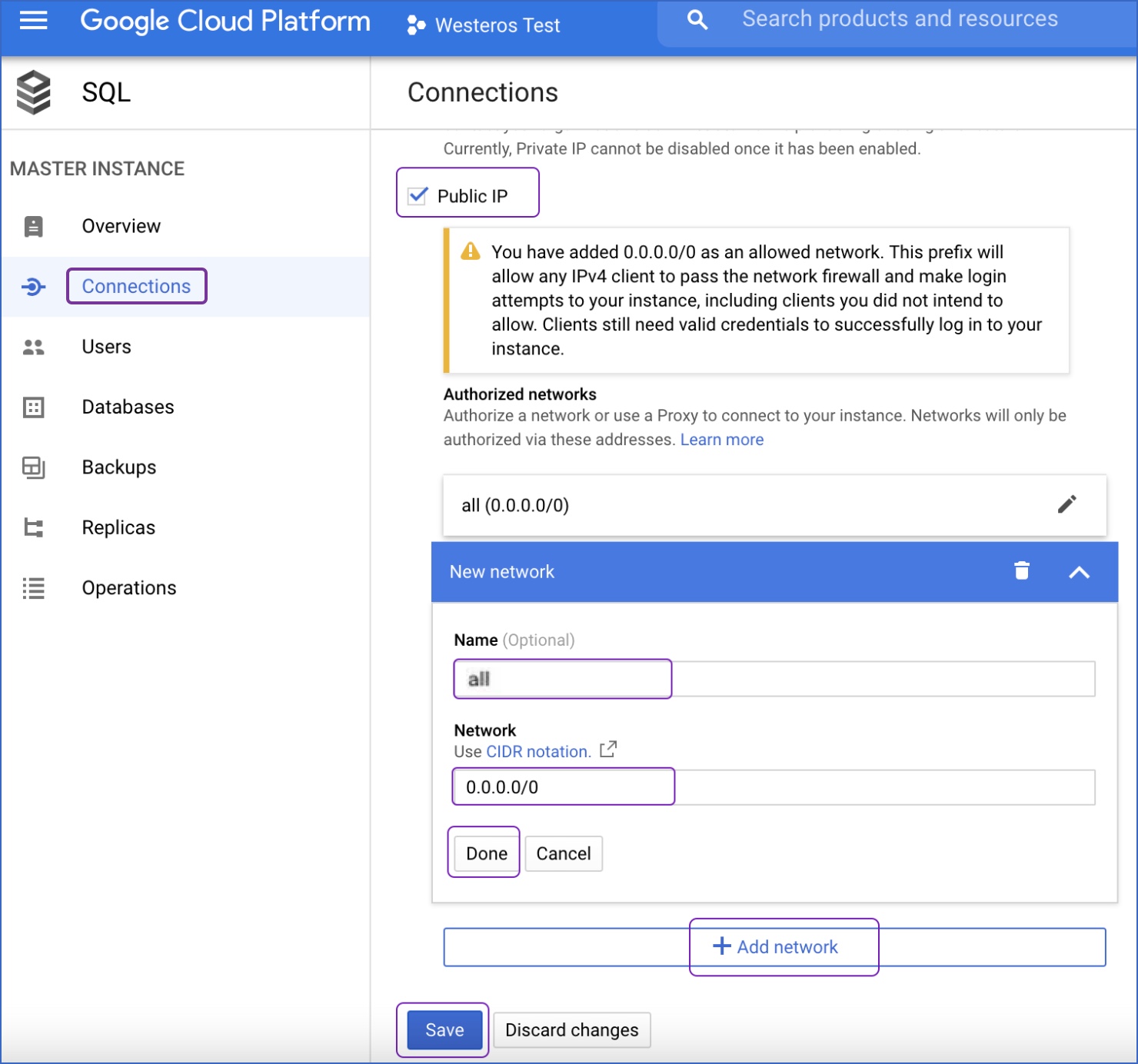
- Restrict IP ranges. If you must allow direct MySQL access, limit the authorized networks to the VM’s static external IP.
- Apply least‑privilege principles. Create separate MySQL users for different applications, granting only the permissions each needs.
- Enable query caching. Cloud SQL offers InnoDB buffer pool tuning; adjust it based on your workload size.
- Monitor with Cloud Monitoring. Set alerts for high CPU, slow queries, or unexpected connections.
Common Pitfalls and How to Avoid Them
Newcomers often stumble over a few recurring issues. Recognizing them early can save a lot of troubleshooting time.
- Authentication errors. If the proxy reports “permission denied,” double‑check that the service account has the Cloud SQL Client role and that the JSON key path is correct.
- Timeouts on large result sets. phpMyAdmin’s default PHP settings may abort after a few megabytes. Increase
max_execution_timeandmemory_limitinphp.iniif you need to export big tables. - Version mismatches. phpMyAdmin may not fully support the newest MySQL features; ensure you’re running a recent phpMyAdmin release (5.2+ as of 2024).
- Forgotten backups. While Cloud SQL automates backups, verify the retention policy matches your compliance needs. Export a manual dump occasionally for off‑site storage.
Wrapping Up the Workflow
With a Cloud SQL instance, a modest Compute Engine VM, and the Cloud SQL Auth proxy, you get a secure, low‑maintenance MySQL environment that’s still accessible through the familiar phpMyAdmin UI. The combination is ideal for teams that need quick visual access to data without compromising Google Cloud’s robust security model.
Frequently Asked Questions
Can I use phpMyAdmin without the Cloud SQL Auth proxy?
Technically yes—by whitelisting your VM’s external IP on the instance’s authorized networks. However, the proxy adds encryption and IAM‑based authentication, so it’s the recommended method for production.
Is there a cost advantage to using a tiny VM for phpMyAdmin?
Because phpMyAdmin itself is lightweight, a f1‑micro or e2‑micro VM typically stays within the free‑tier limits for small projects. Just watch outbound traffic if you enable remote backups.
How do I upgrade the MySQL version on Cloud SQL?
Navigate to the instance details page, click “Edit,” and select the desired MySQL version. Google Cloud will perform a rolling upgrade, preserving data but requiring a brief maintenance window.
What alternatives exist to phpMyAdmin on Google Cloud?
For developers who prefer a command‑line approach, Cloud Shell and the gcloud sql connect command work well. GUI alternatives include Adminer, MySQL Workbench (via Cloud VPN), or third‑party SaaS tools that support Cloud SQL connections.