How to Troubleshoot Common Computer Problems: A Practical Repair Guide
When a PC hiccups, a frustrated user can quickly lose confidence. A solid computer repair guide turns that frustration into action. By following a structured approach, you can identify whether an issue is hardware, software, or user‑related, and resolve it without calling a technician.
Computer Repair Guide: Step‑by‑Step Troubleshooting
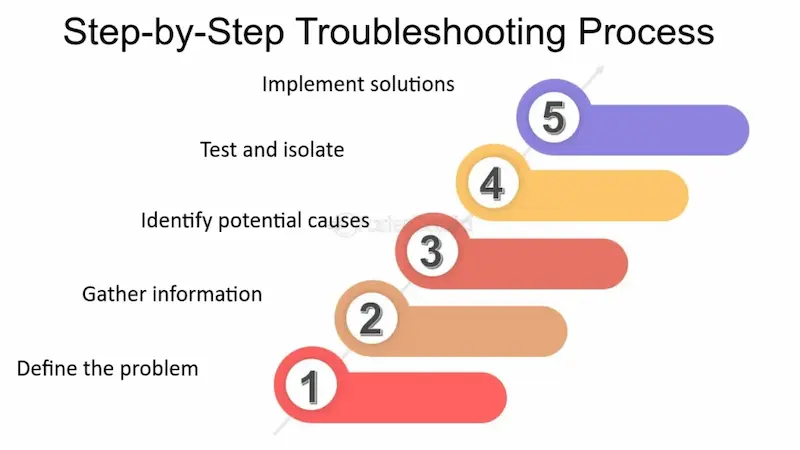
Start with a clear method. The “three‑step” rule—observe, isolate, solve—works for almost every problem. First, note the symptom: no boot, slow loading, strange noises, or error messages. Next, narrow the cause: is it the operating system, a peripheral, or the internal components? Finally, apply the fix that matches the root cause.
Common Symptom Categories
- Boot issues: No display, spinning hard drive, or BIOS screen only.
- Performance slowdowns: Applications lag, high CPU usage, or memory leaks.
- Hardware failures: Beeping fans, overheating, or peripheral disconnects.
- Software glitches: Crash loops, driver errors, or malware symptoms.
Diagnosing Boot Problems
1. Check power. Verify that the main power cord and the motherboard’s ATX connector are secure. A loose cable can cause a no‑boot condition.
2. Listen for beeps. Most motherboards emit beep codes when a failure occurs. Reference the motherboard’s manual to decode them.
3. Test with minimal hardware. Remove all non‑essential devices—external drives, USB peripherals, and extra RAM sticks. If the system boots, add components one by one to spot the culprit.
4. Reset CMOS. Use the jumper on the motherboard or remove the battery for a minute. This restores BIOS defaults and can clear corrupted settings that block booting.
Fixing Slow Performance
1. Scan for malware. Run a reputable antivirus and anti‑malware tool. Hidden infections can consume resources.
2. Clean up disk space. Uninstall unused programs, clear temporary files, and run a defragmentation (for HDDs).
3. Check background processes. Open Task Manager to identify high CPU or memory usage. End non‑essential tasks and consider upgrading RAM if the system repeatedly maxes out.
4. Update drivers. Outdated or buggy drivers—especially for graphics or network adapters—can throttle performance. Use the manufacturer’s website or device manager.
Resolving Overheating and Fan Noise
1. Inspect vents and fans. Dust accumulates quickly. Clean the air intake and exhaust with compressed air.
2. Verify fan direction. Fans should pull air through the intake and expel it from the rear or top. Misoriented fans can trap heat.
3. Check thermal paste. If the CPU or GPU is older, re‑applying paste can improve heat transfer.
4. Monitor temperatures. Tools like HWMonitor or SpeedFan show real‑time readings. Persistent highs (>80 °C) indicate a cooling issue.
Tackling Blue Screen Errors
1. Read the error code. A STOP code (e.g., 0x0000007B) points to the problem type—drivers, storage, or memory.
2. Run memory diagnostics. Windows Memory Diagnostic or MemTest86 can flag faulty RAM.
3. Check disk integrity. Use chkdsk /f /r from an elevated command prompt to fix bad sectors.
4. Rollback recent changes. If the crash began after a driver update, revert to the previous version.
Hardware Replacement Checklist
- RAM sticks: Try one stick at a time; if one fails, replace it.
- Power supply: Measure output with a multimeter; consider a unit with higher wattage if components demand more.
- Hard drives/SSDs: Replace any drive that fails a SMART test or produces clicking noises.
Essential Tools for a DIY Repair
- Phillips and flat‑head screwdrivers
- Anti‑static wrist strap
- Compressed air can
- Multimeter (for power checks)
- USB bootable Windows or Linux installer
- Diagnostic software (MemTest86, HWMonitor, CrystalDiskInfo)
Preventive Measures to Keep Your System Running Smoothly
• Keep firmware updated. BIOS, UEFI, and firmware updates can resolve hardware compatibility and security issues.
• Regular clean‑ups. Schedule monthly dusting and disk cleanup to avoid overheating and fragmentation.
• Back up data. Use cloud storage or an external drive. Backups save time and eliminate panic when a repair is needed.
• Monitor health metrics. Set up alerts for temperature spikes or disk errors through system tools.
Frequently Asked Questions
- What should I do if my computer won’t turn on? First, check the power cable and outlet. If the power supply light turns on but the screen stays dark, try a minimal boot test with one RAM stick and no peripherals.
- How can I tell if a failing hard drive is the cause of my system crashes? Use a SMART monitoring tool; look for attributes like Reallocated_Sector_Ct or Current_Pending_Sector. If these values are high, replace the drive.
- Is it safe to replace my own CPU? Yes, as long as you follow anti‑static precautions and use proper thermal paste. Refer to the CPU’s datasheet for installation steps.
- When should I consider professional help? If you’re uncomfortable opening the case, if the issue involves motherboard replacement, or if the system is still under warranty.