How to Run IPFS on an Orange Pi 5: A Step‑by‑Step Guide
Why Combine IPFS with an Orange Pi 5?
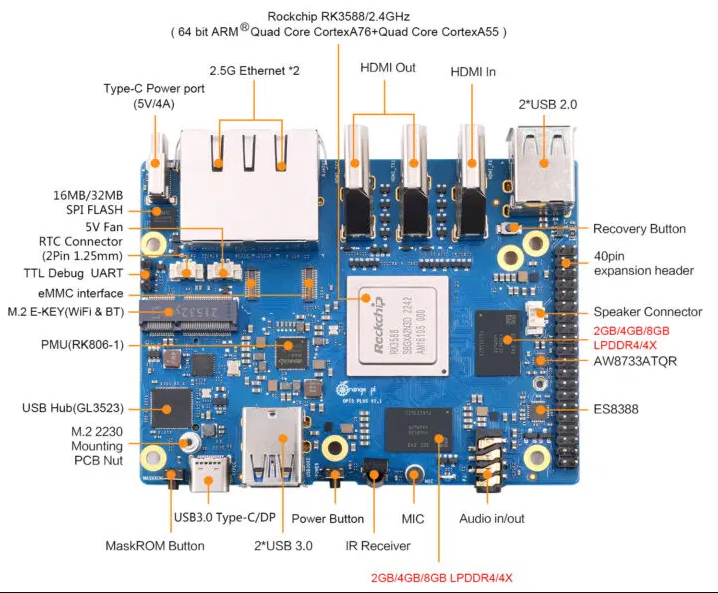
The Orange Pi 5 packs a Rockchip RK3588 SoC, up to 8 GB RAM, and a gigabit Ethernet port—features that make it a surprisingly capable home server. Pairing it with the InterPlanetary File System (IPFS) turns that modest board into a decentralized storage node that can serve files, host static websites, or even participate in a global content‑addressed network.
Because the hardware runs Linux just like a Raspberry Pi, the installation steps are largely the same, but the Orange Pi’s richer CPU and faster I/O can handle larger pinning loads without breaking a sweat.
What You’ll Need
- A brand‑new Orange Pi 5 (4 GB or 8 GB model works fine)
- A micro‑SD card (minimum 16 GB, Class 10 recommended)
- Power supply delivering at least 5 V / 3 A
- Ethernet cable or Wi‑Fi dongle for network access
- Keyboard, mouse, and monitor for initial setup (or a SSH client for headless install)
Preparing the Operating System
First, flash a lightweight Linux distro onto the SD card. Armbian is a popular choice because it includes the necessary kernel modules for the RK3588. Download the latest Armbian image for Orange Pi 5, then use balenaEtcher or dd to write it.
Once the card is in the board, power up and log in with the default credentials (username root, password 1234). The first boot will prompt you to create a new user—do that, then run sudo apt update && sudo apt upgrade -y to bring the system up to date.
Installing IPFS
IPFS offers a pre‑compiled binary for ARM64, which matches the Orange Pi 5’s architecture. Follow these steps:
- Download the latest release:
wget https://dist.ipfs.io/go-ipfs/v0.23.0/go-ipfs_v0.23.0_linux-arm64.tar.gz
- Extract and install:
tar -xzf go-ipfs_v0.23.0_linux-arm64.tar.gz
cd go-ipfs
sudo bash install.sh
- Initialize the node (creates a repository in
~/.ipfs):ipfs init
- Start the daemon to join the network:
ipfs daemon
If you prefer the node to start automatically after a reboot, create a systemd service:
sudo tee /etc/systemd/system/ipfs.service > /dev/null <<EOF
[Unit]
Description=IPFS daemon
After=network-online.target
[Service]
ExecStart=/usr/local/bin/ipfs daemon --enable-gc
Restart=always
User=yourusername
Environment=IPFS_PATH=%h/.ipfs
[Install]
WantedBy=multi-user.target
EOF
sudo systemctl enable ipfs.service
sudo systemctl start ipfs.service
Optimising the Node for the Orange Pi 5
The default configuration works, but a few tweaks can make better use of the board’s resources:
- Storage path: Point
IPFS_PATHto a USB‑SSD instead of the SD card for faster reads/writes. - Garbage collection: Enable automatic GC (as shown in the service file) to keep the repo from ballooning.
- Network limits: The Orange Pi’s Ethernet port handles up to 1 Gbps, so you can raise
Swarm.ConnMgr.HighWaterin~/.ipfs/configto allow more simultaneous peers.
Testing Your Setup
With the daemon running, add a test file:
echo "Hello IPFS from Orange Pi 5!" > hello.txtipfs add hello.txt
The command returns a CID (content identifier). Retrieve it from any other device on the same network:
ipfs cat <CID>
If you see the original message, the node is functioning correctly. You can also visit the local gateway at http://localhost:8080/webui to monitor peers, bandwidth, and pinned content.
Common Pitfalls and How to Fix Them
SD card corruption: The Orange Pi 5 can be power‑hungry. Using a high‑quality, high‑speed card reduces the risk of I/O errors. If the system becomes unstable, switch to a USB‑SSD.
Firewall blocks: Some home routers block the default IPFS ports (4001/tcp, 5001/tcp). Ensure these ports are open or set up port‑forwarding if you want your node reachable from the wider internet.
Insufficient RAM for large pins: While the board’s 8 GB variant handles sizable pin sets, the 4 GB model may start swapping under heavy load. Keep the pin count modest or add swap space with caution.
Frequently Asked Questions
Can I run a public IPFS gateway on the Orange Pi 5?
Yes. By default the daemon exposes the HTTP gateway on port 8080. For a publicly accessible gateway, forward that port on your router and consider adding a reverse proxy (e.g., Nginx) to handle TLS.
Which Linux distribution works best for IPFS on this board?
Armbian’s “Buster” or “Bullseye” images are well‑supported and lightweight. Ubuntu Server also works, but you’ll need to ensure the kernel includes the RK3588 drivers.
How much storage do I need for a personal pinning node?
It varies. A modest node that pins a few gigabytes of media can run comfortably on a 256 GB SSD. For larger collections, plan for at least 1 TB and enable regular garbage collection.
Is it safe to expose my IPFS node to the internet?
IPFS is designed for open sharing, but you should still secure the underlying OS—keep packages updated, use a firewall, and avoid exposing unnecessary services. The daemon itself does not store personal data unless you deliberately pin it.