How to Resolve HTML5 Video Not Found Errors in Chrome
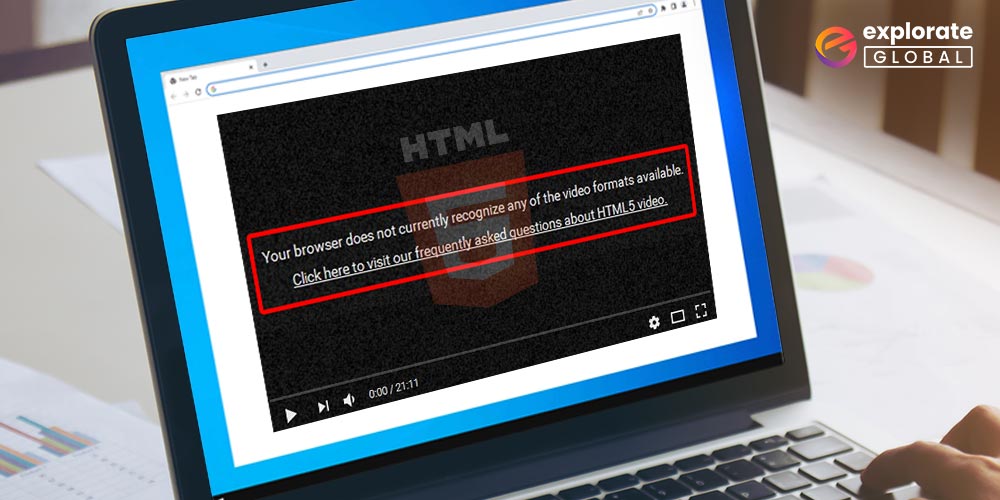
Seeing “HTML5 video not found” pop up in Chrome can feel like hitting a brick wall, especially when the same page works fine in other browsers. The frustration usually stems from a mismatch between what Chrome expects and what the server delivers. Below we’ll walk through the most common culprits, then break down a practical, step‑by‑step approach that gets your videos playing again without endless trial‑and‑error.
Why Chrome Shows “HTML5 Video Not Found”
Chrome is picky about a few technical details that other browsers often gloss over. When any of these pieces are out of line, the browser refuses to load the media and throws the generic “HTML5 video not found” warning.
- Incorrect file path or filename – A missing slash, a typo, or a case‑sensitivity issue on the server can make the resource invisible.
- Wrong MIME type – Chrome expects the server to announce the video’s
Content‑Type(e.g.,video/mp4); a genericapplication/octet-streamconfuses it. - Unsupported codec or container – Even if the file extension is
.mp4, the internal codec might be one Chrome can’t decode. - Cache or Service Worker interference – Stale cached responses or an over‑aggressive Service Worker can serve a corrupted copy.
- Browser extensions – Some ad‑blockers or privacy extensions rewrite network requests, unintentionally breaking video URLs.
Step‑by‑Step Fixes
1. Verify the Video URL
Open the page source (Ctrl + U) and locate the <video> tag. Copy the src attribute and paste it directly into Chrome’s address bar. If you get a 404 or a download prompt, the path is wrong. Common oversights include:
- Missing leading slash for absolute paths.
- Using backslashes instead of forward slashes on Windows‑hosted sites.
- Case mismatches – “Video.mp4” vs. “video.mp4” on case‑sensitive servers.
Correct the path in your HTML or adjust the server’s rewrite rules, then reload.
2. Check MIME Types on the Server
Use Chrome’s DevTools (F12 → Network) and look at the video request. The Content‑Type header should read video/mp4, video/webm, or another appropriate type. If it shows text/html or application/octet-stream, update the server configuration:
- Apache: add
AddType video/mp4 .mp4to.htaccessorhttpd.conf. - Nginx: include
mime.types;and ensurevideo/mp4 mp4;is present. - Node/Express: set
res.type('video/mp4');before streaming.
After saving the config, restart the server and clear Chrome’s cache (Ctrl + Shift + R).
3. Confirm Codec Compatibility
Even a correctly named .mp4 file can fail if it uses an obscure codec like HEVC (H.265). Chrome supports H.264 baseline, main, and high profiles, plus VP9 and AV1 in newer versions. Run ffprobe or an online tool to inspect the video:
ffprobe -v error -show_entries stream=codec_name,codec_type -of default=noprint_wrappers=1 video.mp4If the codec isn’t on Chrome’s support list, re‑encode with ffmpeg:
ffmpeg -i input.mov -c:v libx264 -preset medium -crf 23 -c:a aac -b:a 128k output.mp4Replace the original file and update the reference in your HTML.
4. Clear Cache and Bypass Service Workers
Stale caches are sneaky. In DevTools, right‑click the page name in the Sources panel and select “Unregister Service Workers.” Then perform a hard reload (Ctrl + Shift + R). If the video loads, you know the Service Worker was serving an outdated response. Adjust the cache-control headers or add a skipWaiting() call in the Service Worker script.
5. Disable Problematic Extensions
Temporarily turn off all extensions (chrome://extensions) and reload the page. If the video appears, enable extensions one by one to pinpoint the culprit. Privacy‑focused extensions that block “media” or “tracking” domains are frequent offenders. Whitelist your site or consider a less aggressive alternative.
6. Update Chrome or Try a Fresh Profile
Occasionally, a Chrome bug can cause false negatives. Ensure you’re on the latest stable release (chrome://settings/help). If the issue persists, create a new user profile (Settings → Manage People → Add Person) and test the page there. A clean profile eliminates corrupted local settings.
Best‑Practice Checklist
- Use relative URLs when possible to avoid accidental absolute‑path mismatches.
- Serve videos over HTTPS; mixed‑content warnings can block loading.
- Set
Cache‑Control: public, max‑age=31536000for immutable assets, but keep a version query string (e.g.,video.mp4?v=2) for updates. - Provide multiple source formats (
mp4andwebm) inside the<video>tag for broader compatibility. - Test on Chrome’s “Lighthouse” audit to catch hidden performance or accessibility issues.
FAQ
Why does the video load in Firefox but not in Chrome?
Firefox is more forgiving about MIME types and will often play a video even when the server reports a generic type. Chrome adheres strictly to the Content‑Type header, so mismatched or missing MIME declarations cause it to abort the request.
Can a CDN cause “HTML5 video not found” errors?
Yes. CDNs may cache an older version of the video or misconfigure edge‑node MIME types. Purge the specific file from the CDN cache and verify that the edge server sends the correct Content‑Type.
Is there a way to debug video loading without opening DevTools?
Adding onerror and onloadeddata callbacks to the <video> element can surface errors directly in the page console:
<video src="video.mp4"onerror="console.error('Video failed to load')"
onloadeddata="console.log('Video ready')"
controls></video>
These logs give a quick hint about whether the file is unreachable or the codec is unsupported.
Do I need to adjust CORS settings for local video files?
If the video is hosted on a different domain or sub‑domain, Chrome enforces CORS. Adding the header Access-Control-Allow-Origin: * (or a specific origin) to the video response resolves cross‑origin loading issues.