How to Quickly Create Desktop Shortcuts in Windows 11
Desktop shortcuts are the little icons you click to jump straight to an app, file, or website without digging through menus. In Windows 11, the process feels a bit different from older versions, but it’s still straightforward once you know the tricks. Below you’ll find the easiest methods, plus a handful of tips to keep your workspace tidy.
Why bother with desktop shortcuts?
First, they save time. A single double‑click can replace a series of navigation steps, which adds up especially if you open the same program multiple times a day. Second, they personalize your desktop—placing the tools you use most within arm’s reach makes the whole experience feel more tailored. Finally, shortcuts are lightweight; they’re just tiny .lnk files, so they don’t clutter your hard drive.
Method 1: Drag‑and‑drop from the Start menu
The most visual way to add a shortcut is to pull it straight from the Start menu. Open the Start menu, find the app you want, then click and hold its icon. Drag it to an empty spot on the desktop and release. Windows automatically creates a shortcut that looks like the original tile.
This works for most modern apps, but legacy programs that appear as simple list items may need a different approach.
Method 2: Right‑click the file or folder
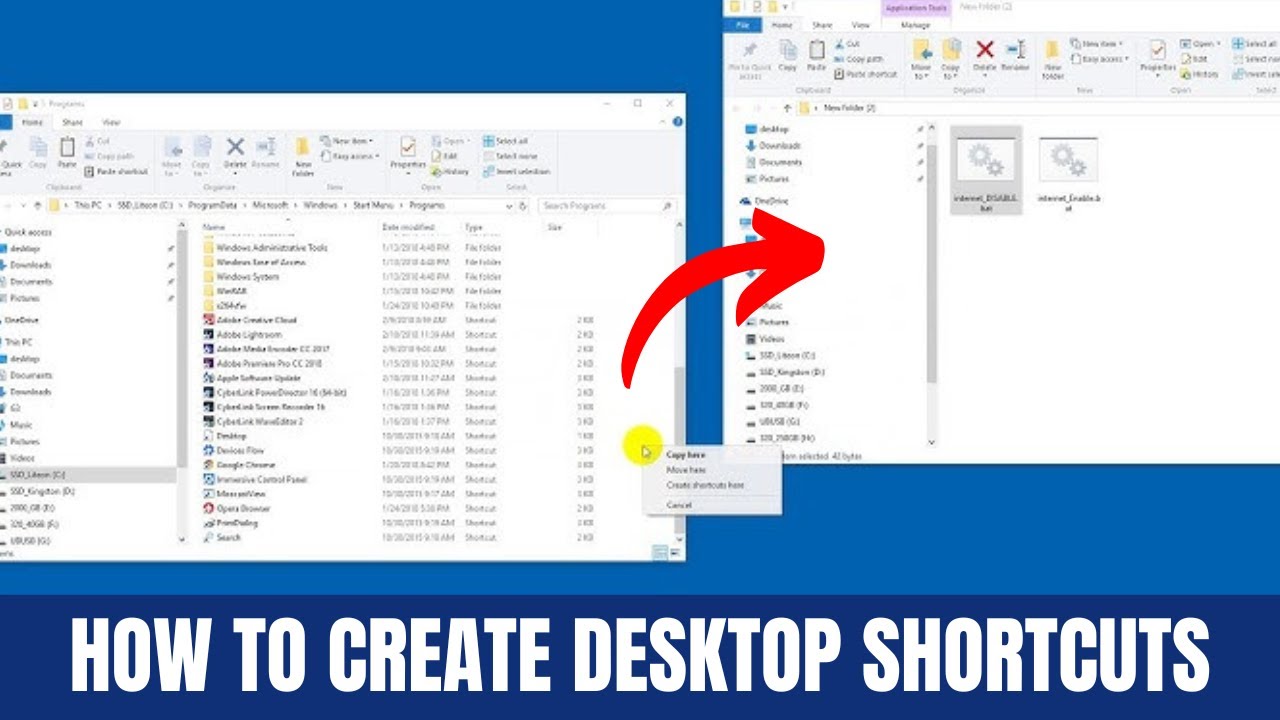
If you have a specific document, folder, or executable file, the classic right‑click menu is your friend. Locate the item in File Explorer, right‑click it, hover over Show more options (or press Shift + F10 for the old context menu), and choose Send to → Desktop (create shortcut). A new icon appears on the desktop, ready for a double‑click.
For folders, you can also select Create shortcut from the same menu, then move the resulting shortcut to the desktop manually.
Method 3: Use the “New → Shortcut” wizard
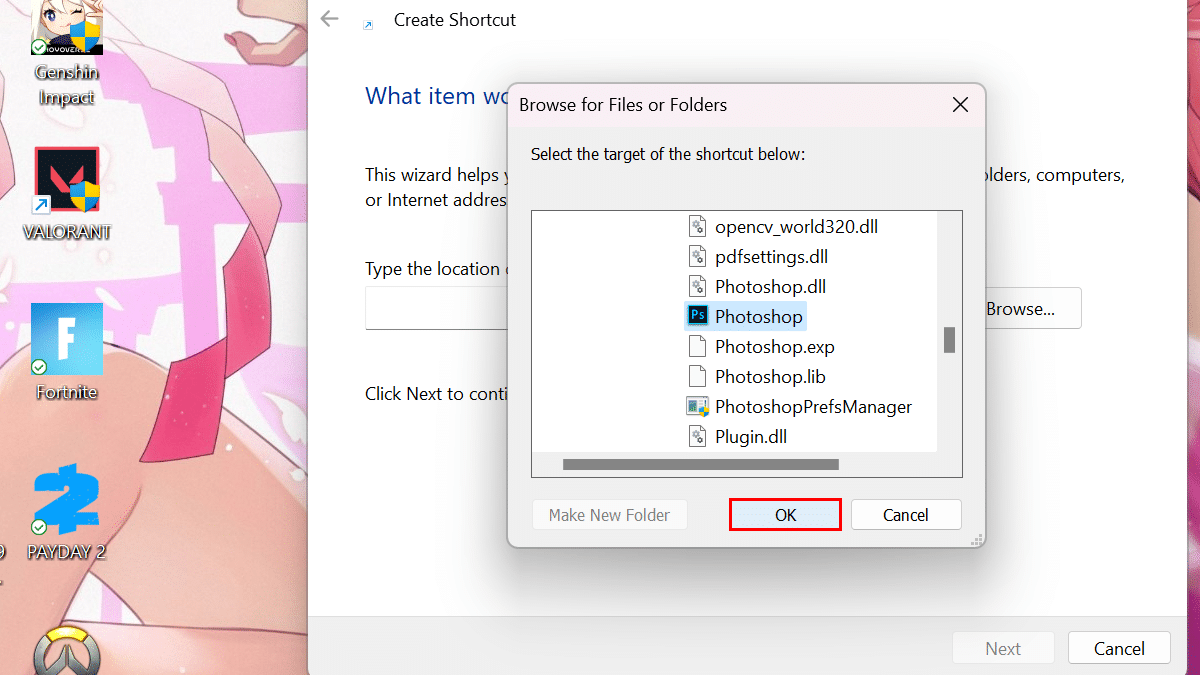
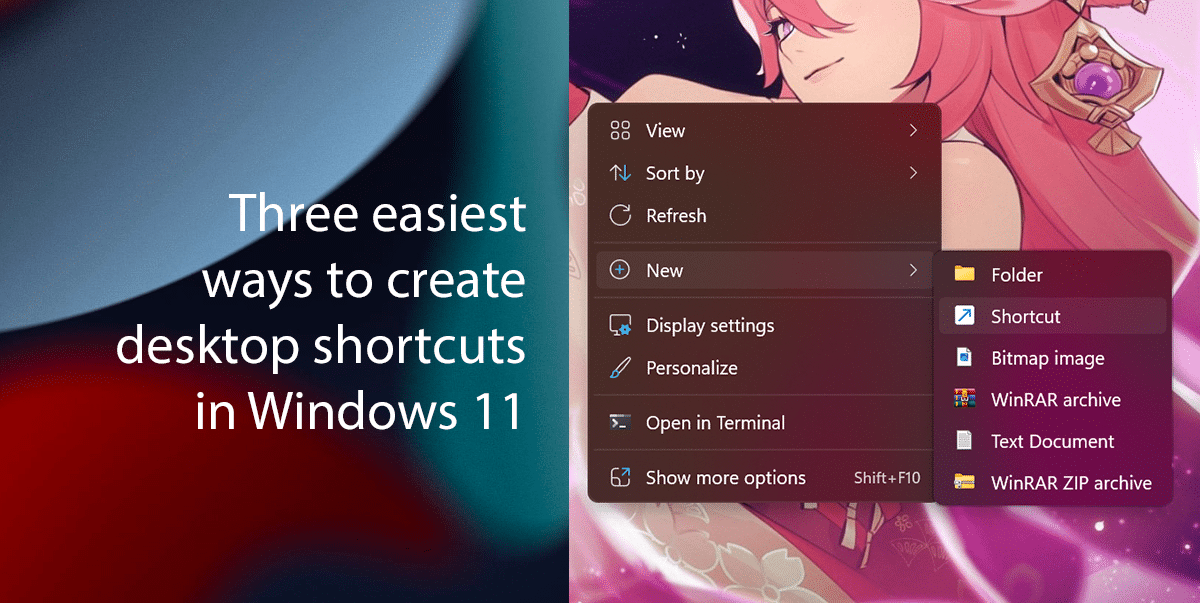
When you need a shortcut to a website, a control panel item, or a command line script, the built‑in shortcut wizard is the most flexible tool. Right‑click an empty area on the desktop, choose New → Shortcut, and a dialog box appears asking for the location of the item.
- For a website, type the full URL (e.g.,
https://www.example.com) and click Next. - For a system tool, enter the full path or the control panel command (e.g.,
ms-settings:for Settings). - Give the shortcut a name that makes sense to you, then finish.
After the shortcut is created, you can change its icon by right‑clicking it, selecting Properties → Change Icon, and browsing to an .ico file of your choice.
Quick tweaks to make your shortcuts more useful
Once you have a handful of icons, a few small adjustments can keep your desktop from looking like a cluttered junk drawer.
- Rename for clarity. A default name like “Google Chrome.lnk” can be trimmed to just “Chrome”.
- Group related shortcuts. Create a new folder on the desktop (right‑click → New → Folder) and drop similar items inside—e.g., all productivity tools in one “Work” folder.
- Pin to taskbar instead. If you find yourself clicking a shortcut more than a few times a day, consider pinning the app to the taskbar for even faster access.
- Hide rarely used icons. Right‑click the desktop, select View → Show desktop icons to toggle visibility without deleting anything.
What to avoid when creating shortcuts
Not every shortcut is worth the space it occupies. Avoid duplicating icons for programs that already have a taskbar or Start menu presence. Also, be wary of shortcuts that point to network locations you don’t regularly access—if the network goes down, the icon will appear broken and may cause confusion.
FAQ
Can I create a shortcut to a specific web page?
Yes. Use the “New → Shortcut” wizard and enter the page’s URL. After naming it, you’ll have a desktop icon that opens the site in your default browser.
Do shortcuts work for Windows Settings pages?
Absolutely. Many settings have a URI scheme (e.g., ms-settings:network) that you can paste into the wizard. The resulting shortcut opens directly to that Settings pane.
How do I delete a shortcut without removing the original program?
Simply select the shortcut on the desktop and press Delete. Because a shortcut is just a pointer file, removing it does not affect the actual application or file it references.
Is there a way to batch‑create shortcuts for many files?
PowerShell or a simple batch script can generate multiple .lnk files at once, but for most users the manual methods above are quick enough for everyday needs.