How to Install Ubuntu Touch on a Pixel 3a XL for Better Privacy
If you’ve grown weary of Google’s data‑harvesting practices, swapping Android for a privacy‑focused OS can feel like a breath of fresh air. Ubuntu Touch, the mobile version of the popular Linux distribution, promises a more transparent ecosystem while still letting you make calls, send messages, and browse the web. Below is a step‑by‑step guide to getting Ubuntu Touch up and running on your Pixel 3a XL, plus a few tips on why the switch can improve your digital privacy.
Why Choose Ubuntu Touch over Stock Android?
Ubuntu Touch is built on open‑source components, which means the code can be audited by anyone. Unlike Android, which bundles numerous proprietary services that report usage back to Google, Ubuntu Touch runs a stripped‑down stack that only contacts servers you explicitly trust. The system also isolates apps in separate containers, limiting the data any single program can access. In practice, this translates to fewer background location checks, no mandatory ad ID, and a clearer picture of what’s happening on your device.
Prerequisites Before You Begin
- Pixel 3a XL (unlocked bootloader) – The bootloader must be unlocked to flash a new OS.
- Computer running Linux, macOS, or Windows – The UBports Installer works cross‑platform.
- USB‑C cable – A reliable data cable is essential for a smooth flash.
- Backup of your data – The process wipes the phone, so copy photos, contacts, and any important files to a PC or cloud service.
Step 1: Unlock the Bootloader
First, enable Developer Options on the Pixel 3a XL (Settings → About phone → tap “Build number” seven times). Then turn on “OEM unlocking” and “USB debugging.” Connect the phone to your computer, open a terminal or command prompt, and run:
adb reboot bootloaderfastboot flashing unlock
The device will display a warning; use the volume keys to confirm. Once unlocked, the phone will reboot to a clean state.
Step 2: Install the UBports Installer
Download the latest UBports Installer from ubports.com. It’s a single‑click application that handles the heavy lifting: downloading the Ubuntu Touch image, flashing it, and setting up the initial configuration. After installing, launch the program and select “Pixel 3a XL” from the device list.
Step 3: Flash Ubuntu Touch
The installer will guide you through a few prompts. When it asks whether you want to wipe the device, confirm – this erases the existing Android partitions and makes room for Ubuntu Touch. The flashing process typically takes 10‑15 minutes; you’ll see a progress bar and occasional log messages. If the phone appears to freeze, give it a minute; the installer is often waiting for the bootloader to respond.
Step 4: First‑Boot Configuration
After the flash, the Pixel 3a XL will boot into Ubuntu Touch’s welcome screen. You’ll be prompted to choose a language, set up a Wi‑Fi network, and create a UBports account (optional but handy for OTA updates). Unlike Android, there’s no Google Play Store; instead, apps are distributed through the OpenStore, which hosts community‑reviewed packages.
Managing Apps and Keeping Your System Private
Ubuntu Touch’s security model separates each app into its own confined environment, similar to containers on a desktop Linux system. This means an app cannot silently read your contacts or location unless you explicitly grant permission through the system settings. To install new software, open the OpenStore, browse categories, and tap “Install.” Popular privacy‑focused browsers like Falkon or the Tor‑based Orfox are readily available.
Potential Drawbacks to Consider
While Ubuntu Touch shines for privacy, it isn’t a perfect Android replacement. The app ecosystem is smaller, and some hardware features—like advanced camera modes or wireless charging—may not work flawlessly yet. Most users find that basic phone functions (calls, SMS, Wi‑Fi) are solid, but power users might miss certain niche Android apps. It’s worth testing a few days before deciding to keep the OS permanently.
Switching Back to Android (If Needed)
Should you decide Ubuntu Touch isn’t for you, the process to revert is straightforward. Re‑unlock the bootloader (if you locked it again), then download the factory image for the Pixel 3a XL from Google’s developer site. Flash it with fastboot flashall, and your device will return to stock Android. Keep in mind that unlocking the bootloader triggers a factory reset each time, so maintain regular backups regardless of the OS you run.
FAQ
Will installing Ubuntu Touch void my Pixel 3a XL warranty?
Most manufacturers consider unlocking the bootloader a warranty‑eligible action. Google’s Pixel line technically allows bootloader unlocking without voiding the warranty, but any damage caused during flashing isn’t covered.
Can I still receive OTA updates?
Yes. Ubuntu Touch receives regular OTA updates through the UBports project. The installer sets up a background service that checks for updates daily, and you can manually trigger an upgrade from the “System Settings” menu.
Is my data automatically encrypted?
Ubuntu Touch encrypts user data by default, using LUKS on the device’s internal storage. This adds an extra layer of protection should the phone be lost or stolen.
Do I need to root the device to install Ubuntu Touch?
No. The UBports Installer works with an unlocked bootloader, not a rooted system. Rooting isn’t required and would actually complicate the flashing process.


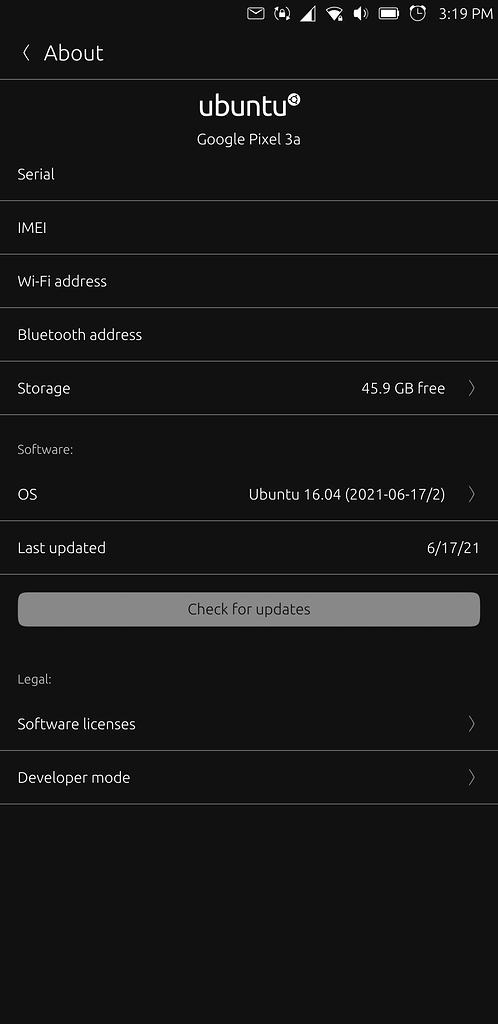
![Not only iOS and Android… Ubuntu Touch! (on Google Pixel 3a XL) [ENG 🇬🇧]](https://blog.tomaszdunia.pl/images/aft5.png)