How to Fix Rainmeter Weather Skins in 2024: A Complete Guide
If your Rainmeter weather widget has stopped showing temperatures, icons, or updates, you’re not alone. Many users encounter hiccups after a Windows update, a change in API policies, or a simple misconfiguration. This guide walks you through the most frequent roadblocks and offers step‑by‑step fixes, so your desktop can stay as informative as it is beautiful.
Understanding Common Rainmeter Weather Issues
Before diving into solutions, it helps to recognize the typical symptoms. A blank widget usually points to a broken data source, while stale forecasts often mean the refresh interval is stuck. Sudden error messages like “Invalid API key” or “Unable to connect” typically involve network permissions. Knowing which of these you’re facing narrows down the troubleshooting path.
Verify Your Skin’s Settings First
Open the Rainmeter manager, right‑click the weather skin, and choose Settings. Check the following:
- Correct location code (city name, ZIP, or latitude/longitude).
- Properly entered API key – many skins rely on OpenWeatherMap, WeatherAPI.com, or AccuWeather.
- Refresh interval isn’t set to an extremely high value (e.g., 7200 seconds).
If any of these fields look empty or outdated, update them and hit Apply. A quick reload often restores data.
Refresh the Skin and the Rainmeter Engine
Sometimes the engine itself needs a nudge. Right‑click the skin and select Refresh Skin. If that doesn’t work, choose Refresh All from the Rainmeter tray icon. As a last resort, exit Rainmeter completely (right‑click the tray icon → Quit) and launch it again. This clears cached requests that may be stuck.
Update Rainmeter to the Latest Build
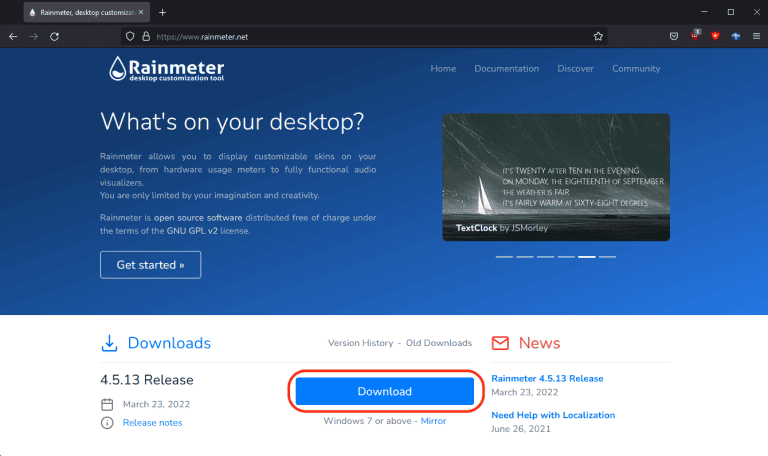
Rainmeter 2024 has introduced several bug‑fixes related to network handling. Head to rainmeter.net, download the newest installer, and run it. The installer will preserve your existing skins while swapping out the core files, which can resolve hidden compatibility issues.
Check Your API Key Status
Free tiers of weather services often impose call limits. If you’ve exceeded those, the API will start rejecting requests, leaving the widget blank. Log into the provider’s dashboard and look for a usage report. If you’re near the cap, consider switching to a different service or upgrading your plan. Remember to replace the old key in the skin’s settings after any change.
Ensure Network Access Isn’t Blocked
Firewalls, VPNs, or strict DNS configurations can interfere with the skin’s HTTP requests. Test connectivity by opening a browser and navigating to the raw API endpoint (your provider usually shows a sample URL). If the page loads JSON data, the network path is clear.
For Windows Defender Firewall, add an inbound rule that allows Rainmeter.exe to communicate over ports 80 and 443. If you use a third‑party firewall, consult its documentation for similar allowances.
Review Proxy and DNS Settings
Corporate or school networks sometimes force traffic through a proxy. Rainmeter doesn’t automatically inherit proxy settings, so you might need to add them manually. Open the skin’s .ini file in a text editor and look for lines like Proxy=. Insert your proxy address if required, or comment the line out with a semicolon to disable it.
Reinstall the Weather Skin
If the skin’s files have become corrupted, a fresh install can clear the problem. Download the latest version from the creator’s website or the Rainmeter forum. Delete the old skin folder (usually under C:\Users\YourName\Documents\Rainmeter\Skins\) before extracting the new one. After installation, repeat the API key and location steps.
Use Rainmeter’s Debug Log for Clues
Rainmeter includes a built‑in log that captures errors. Right‑click the tray icon → Open Log. Look for lines containing “Weather” or “API”. Typical messages include “HTTP error 401” (bad key) or “Connection timed out” (network issue). These hints point you directly to the failing component.
Adjust Refresh Intervals for Stability
Setting the refresh interval too low (e.g., every 30 seconds) can trigger rate limits on free APIs, causing intermittent failures. A sweet spot is usually 10–15 minutes for most users. Edit the RefreshRate value in the skin’s .ini file to something like RefreshRate=600 (seconds).
Consider Alternate Weather Sources
If your current provider has become unreliable, many skins support multiple back‑ends. Open the skin’s configuration and look for a Provider= line. Switching from OpenWeatherMap to WeatherAPI.com, for example, often restores functionality without any visual changes to the widget.
Prevent Future Breakages
Keeping your setup resilient is easier than fixing it after the fact. Here are a few habits:
- Schedule a monthly check of API usage limits.
- Enable automatic Rainmeter updates via the Check for updates option.
- Back up your
Skinsfolder after major tweaks.
These simple steps can save you time when Windows pushes a new update or your internet environment shifts.
Frequently Asked Questions
Why does my Rainmeter weather skin show a blank screen?
Most often it’s an invalid or missing API key, a blocked network request, or an outdated location code. Verify the key, ensure internet access, and refresh the skin.
Can I use a free weather API without hitting limits?
Free tiers usually allow a few hundred calls per day. Set the refresh interval to at least 10 minutes and monitor usage on the provider’s dashboard to stay within limits.
Does changing Windows 11’s dark mode affect the weather skin?
Only if the skin relies on system colors for its icons. Some skins include a Theme= setting—switch it to Light or Dark accordingly.
Is there a way to see the raw weather data Rainmeter receives?
Yes. Open the log (right‑click Rainmeter → Open Log) and look for the JSON response line. It shows the exact data the skin parses.

![Rainmeter Weather Not Working - [SOLVED]](https://silicophilic.com/wp-content/uploads/2021/05/Rainmeter_weather.jpg)