How to Convert Files to ZIP: A Simple Step‑by‑Step Guide
If you’ve ever needed to email a collection of photos, share a project folder, or save space on a hard drive, you’ve probably wondered how to convert files to ZIP. The process is more about understanding a few basic concepts than mastering a complex piece of software. In this guide we’ll walk through why ZIP matters, pick the right tool for your platform, and break down the conversion steps so you can start compressing with confidence.
Why Convert Files to ZIP?
ZIP isn’t just another file extension; it’s a universal container that bundles multiple items into a single, compressed package. This offers three practical benefits:
- Size reduction: Most files shrink by 10‑70%, depending on their type, which speeds up uploads and downloads.
- Convenient sharing: Email services and cloud platforms often limit attachment size, and a ZIP file can fit under those caps.
- Organized storage: Keeping related documents together reduces folder clutter and makes backups simpler.
Because ZIP is supported natively on Windows, macOS, and most Linux distributions, you rarely need a special viewer—just double‑click and the archive opens like any other folder.
Choosing the Right Compression Tool
While modern operating systems include built‑in ZIP utilities, third‑party apps can provide extra features such as encryption, batch processing, or higher compression ratios. Here’s a quick rundown of common options:
- Windows Explorer: Right‑click a file or folder, choose “Send to → Compressed (zipped) folder.” No installation required.
- macOS Finder: Control‑click the selection and pick “Compress.” The system creates a
.zipfile beside the original. - 7‑Zip (Windows/Linux): Free, open‑source, and offers formats beyond ZIP, plus a “Add to archive” dialog for fine‑tuning settings.
- The Unarchiver (macOS): Handles many archive types and integrates smoothly with Finder’s context menu.
- WinRAR (Windows): Although it defaults to RAR, you can create ZIP archives and set password protection.
Pick the tool that matches your workflow. If you only need occasional compression, the built‑in utilities are more than sufficient.
Step‑by‑Step: Converting Files to ZIP
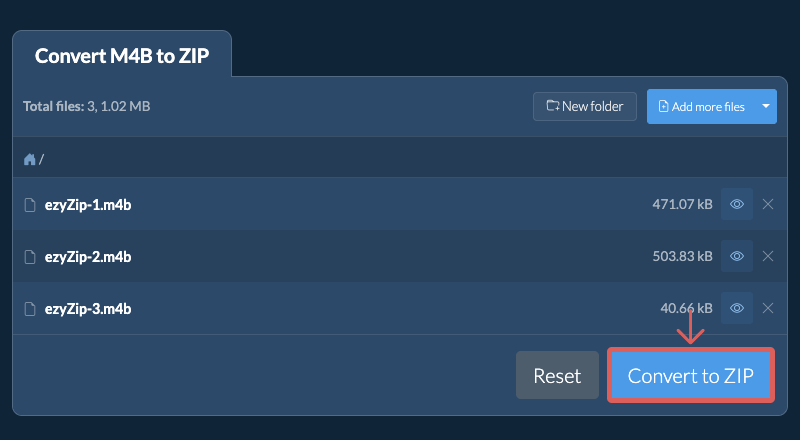
Below is a universal workflow that works whether you’re on Windows, macOS, or using a third‑party app. Adjust the specifics to your chosen program.
1. Gather the Files
Place every item you want to compress in a single folder. This prevents you from having to select each file individually later on.
2. Select the Folder
On Windows, right‑click the folder and hover over “Send to.” On macOS, control‑click the folder and choose “Compress.” If you’re using 7‑Zip, right‑click and select “7‑Zip → Add to archive…”
3. Choose Compression Settings (Optional)
Most built‑in tools use the default “normal” compression, which balances speed and size. Advanced apps let you pick “Fast,” “Maximum,” or even “Ultra” levels. Keep in mind that higher compression can take noticeably longer on large files.
4. Name the Archive
The new file will appear with the same name as the original folder, followed by .zip. Rename it if needed—short, descriptive names make future retrieval easier.
5. Verify the Archive
Double‑click the ZIP file to open it. Ensure all intended files are present and that none show a “corrupt” warning. A quick test now saves you headaches later.
That’s it. In under a minute you’ve successfully converted files to ZIP.
Best Practices for Managing ZIP Archives
Creating a ZIP is straightforward, but maintaining them over time requires a few habits:
- Avoid nesting ZIP files. Compressing an already compressed archive yields minimal size gain and can complicate extraction.
- Use descriptive names. Include dates or version numbers (e.g.,
ProjectReport_2024_Q3.zip) to keep track of revisions. - Consider password protection. If the contents are sensitive, most third‑party tools let you encrypt the archive with AES‑256.
- Test after compression. A brief integrity check ensures the archive isn’t corrupted during the write process.
When you follow these guidelines, ZIP files become reliable, portable containers you can trust for both personal and professional use.
Frequently Asked Questions
Can I convert files to ZIP on a mobile device?
Yes. Both iOS and Android have file‑manager apps—such as Files on iOS or Files by Google on Android—that include a “Compress” option for selected items.
Is ZIP the most efficient format for large video files?
Generally no. Video files are already compressed, so ZIP offers limited size reduction. Formats like 7z or specialized video codecs may achieve better results, though compatibility could suffer.
Do ZIP archives preserve file permissions on Linux?
Standard ZIP archives store basic permissions, but they may not retain all Unix attributes. For full permission fidelity, consider tar.gz or tar.xz archives.
Can I add files to an existing ZIP without extracting?
Most modern tools, including 7‑Zip and WinRAR, let you drag new items into an opened archive or use an “Add to archive” command that updates the existing file.