How to Convert 7z to ZIP: An Easy Step‑by‑Step Guide
Need to share a compressed file with someone who only has ZIP support? Converting a 7z archive to ZIP is surprisingly simple once you know which tools to reach for. In this guide we’ll walk through the whole process—whether you prefer a graphical interface, a quick command‑line trick, or an online service. By the end you’ll be able to turn any .7z file into a .zip without losing data or spending hours fiddling with settings.
Convert 7z to ZIP: Quick Overview
The core idea is that both 7z and ZIP are just container formats. They store a collection of files along with compression metadata. To switch from one to the other you essentially extract the contents of the 7z archive, then recompress them as ZIP. The steps look like this:
- Open or extract the 7z file.
- Choose a destination folder.
- Create a new ZIP archive from the extracted files.
That’s it—no special conversion utilities are required.
Using Free Desktop Software (7‑Zip)
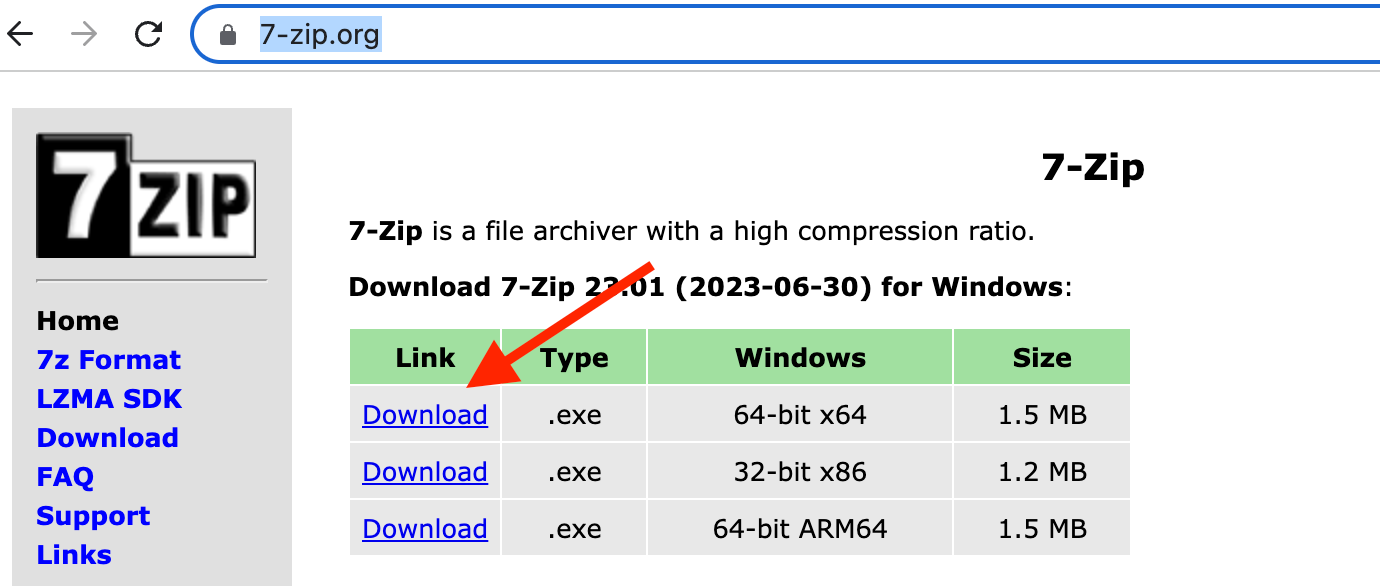
If you already have 7‑Zip installed, you’re already halfway there. The program can both unpack 7z files and build ZIP archives, all from its right‑click context menu.
Step 1: Extract the 7z file
- Right‑click the .7z archive.
- Select 7‑Zip → Extract Here or Extract to “FolderName\” to keep things tidy.
Step 2: Re‑compress as ZIP
- Navigate to the folder containing the extracted files.
- Select all items you want to zip.
- Right‑click, choose 7‑Zip → Add to archive….
- In the dialog, set Archive format to
zipand adjust compression level if desired. - Click OK and let 7‑Zip do the rest.
When the process finishes you’ll have a standard .zip file ready to share.
Command‑Line Approach (Windows, macOS, Linux)
For power users or automation scripts, the command line offers a swift, repeatable method. Both 7z (part of the 7‑Zip suite) and the built‑in zip utility can be combined.
Extract with 7z
7z x archive.7z -ooutput_folderThis extracts everything into output_folder. Next, compress with zip:
cd output_folderzip -r ../archive.zip .
On macOS and many Linux distributions, zip comes pre‑installed. If it’s missing, a quick brew install zip or sudo apt install zip will sort it out.
Online Converters for One‑Off Jobs
When you’re on a machine without any software, a reputable online converter can do the job. Sites like Convertio or Zamzar accept a .7z upload, then let you download a .zip version. The workflow is essentially:
- Upload the .7z file (watch the size limit—usually 50 MB for free users).
- Choose “ZIP” as the output format.
- Start the conversion and wait a few seconds.
- Download the resulting .zip file.
Make sure the service uses HTTPS and deletes your data after processing to protect privacy.
Things to Watch Out For
While conversion is straightforward, a few pitfalls can bite novices:
- File permissions: Extracted files may inherit default permissions that differ from the original archive, especially on Unix‑like systems. Double‑check executable bits if you’re moving scripts.
- Path length limits: Windows has a 260‑character path limit for many legacy tools. If your 7z contains deeply nested folders, you might need to shorten the destination path before extracting.
- Encrypted archives: If the 7z file is password‑protected, you’ll need the password before you can extract anything. The same applies if you intend to re‑encrypt the ZIP; most tools let you set a new password during creation.
Batch Conversions for Multiple Files
Suppose you have a folder full of .7z archives that all need to become .zip. A simple batch script can save hours.
For Windows PowerShell:
Get-ChildItem -Path . -Filter *.7z | ForEach-Object {$base = $_.BaseName
7z x $_.FullName -o"$base"
7z a -tzip "$base.zip" "$base\*"
Remove-Item -Recurse "$base"
}
This script extracts each archive into a temporary folder, creates a ZIP with the same base name, then cleans up. Adjust the paths as needed, and you have a repeatable workflow.
When to Keep Using 7z Instead of ZIP
ZIP remains the most universally supported format, but 7z often yields better compression ratios, especially for large media files or archives with many small items. If disk space is a primary concern and all recipients can handle 7z, staying with the original format might be wiser. In practice, many teams opt for ZIP for its simplicity and broad compatibility, then fall back to 7z for internal backups.
Frequently Asked Questions
Can I convert a password‑protected 7z file directly to ZIP?
No. You must first supply the password to extract the contents. Once the files are out, you can recompress them into a ZIP and optionally set a new password for that archive.
Is any data lost during the conversion?
The conversion process merely repackages existing files; it doesn’t alter the data itself. However, if you change the compression level, the resulting ZIP may be slightly larger or smaller, but the original files remain intact.
Do I need separate software for each step?
Not necessarily. Tools like 7‑Zip handle both extraction and ZIP creation, while command‑line utilities can chain the two actions together. Online services combine both steps in one web form.
Are there size limits for online converters?
Most free services cap uploads at 50‑100 MB. For larger archives, desktop tools are the reliable choice.
![11 Best Convert 7z to Zip Tools (2026) [FREE DOWNLOAD]](https://www.datanumen.com/blogs/wp-content/uploads/2024/02/cloudconvert-7z-to-zip-converter-768x281.jpg)