How to Control Your Air Conditioner with an Oppo Phone
Why Controlling Your AC from a Smartphone Makes Sense
Imagine walking into a living room that’s already at the perfect temperature, all because you nudged a button on your Oppo phone while still in the kitchen. That convenience isn’t a futuristic fantasy—it’s something many users achieve today with a few simple steps. The appeal is obvious: you save energy by avoiding unnecessary cooling, you never have to hunt for the remote, and you get a bit of tech‑savvy satisfaction.
What You Need Before You Start
First, make sure your air conditioner supports remote control via Wi‑Fi or infrared. Modern split units from brands like Daikin, Mitsubishi, or LG often ship with a companion app, while older models might rely on IR signals. On the phone side, most recent Oppo smartphones—such as the Reno 7, Find X5, and some A‑series models—include an IR blaster or can run third‑party smart‑home apps.
- Wi‑Fi‑enabled AC: A built‑in Wi‑Fi module or a compatible smart plug.
- Oppo phone with IR (optional): Required for infrared control.
- Relevant app: Oppo’s native “Smart Remote” app or the AC manufacturer’s app.
- Same network: Both phone and AC should be on the same Wi‑Fi band.
Step‑by‑Step Guide to Pairing Your AC
1. Install the Right App
If your AC brand offers an official app (for example, Daikin Mobile Controller or LG ThinQ), download it from the Google Play Store. For IR‑only control, open Oppo’s preinstalled “Smart Remote” app, which houses a database of common AC codes.
2. Connect Your Phone to the Home Network
Head to Settings → Wi‑Fi and join the same network your AC uses. A stable 2.4 GHz connection usually yields the best reliability for smart appliances.
3. Add the Air Conditioner to the App
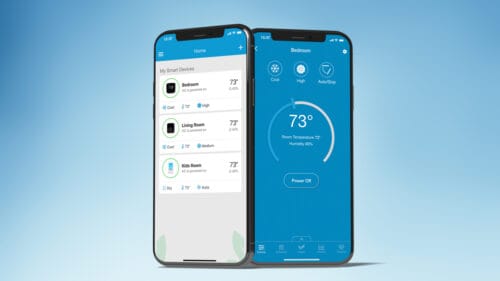
In the app, look for an “Add Device” or “+” button. Choose “Air Conditioner” and follow the on‑screen prompts. If you’re using the IR method, you’ll be asked to select the brand and model; the app will then send a test pulse to verify communication.
4. Fine‑Tune Settings
Once paired, you can set temperature ranges, fan speeds, and modes (cool, dry, fan‑only). Many apps also let you schedule cooling periods or create “away” modes that keep the unit off until you’re home.
5. Use Voice Commands (Optional)
If you’ve linked the app to Google Assistant, a simple “Hey Google, set the living room AC to 24 °C” will do the trick. The integration usually requires a one‑time voice‑match setup inside the Google Home app.
Tips for a Smooth Experience
Even a well‑written guide can hit snags if the environment isn’t optimal. Here are a few practical hints:
- Keep firmware up to date: Both the AC and the app receive periodic updates that improve compatibility.
- Place the phone within line of sight for IR control; walls or furniture can block the signal.
- Use a static IP for the AC if you experience frequent disconnects; this prevents the router from assigning a new address each time.
- Check power settings on your Oppo phone to ensure background data isn’t restricted for the control app.
When to Choose a Third‑Party Universal Remote
If the manufacturer’s app feels clunky or your AC model isn’t listed, universal remote apps like “AnyMote” or “Peel Smart Remote” can bridge the gap. They rely on an extensive IR code library and often support multiple devices in one interface. Just remember that infrared can’t read status feedback—so you won’t see the current temperature on the phone, only the commands you send.
Security Considerations
Connecting any appliance to your home network opens a tiny attack surface. Stick to official apps when possible, change default passwords on Wi‑Fi‑enabled AC units, and enable two‑factor authentication on your Google account if you use voice integration. These steps add negligible hassle but significantly boost peace of mind.
Frequently Asked Questions
Can I control my AC without an internet connection?
Yes, if your phone’s IR blaster is compatible with the AC’s brand. The “Smart Remote” app works entirely offline for infrared commands, though you won’t have scheduling or remote‑monitoring features.
What if my Oppo phone doesn’t have an IR blaster?
In that case, you’ll need a Wi‑Fi‑enabled AC or a smart plug that can toggle power. The phone can then control the unit through the manufacturer’s app or via Google Home.
Do I need a special cable to link the phone and AC?
No cables are required. All communication happens wirelessly—either via infrared pulses or over your home Wi‑Fi network.
Is there any delay when sending commands?
Most users notice only a brief pause—typically under two seconds—especially when using Wi‑Fi. IR commands are essentially instantaneous, limited only by the phone’s processing speed.