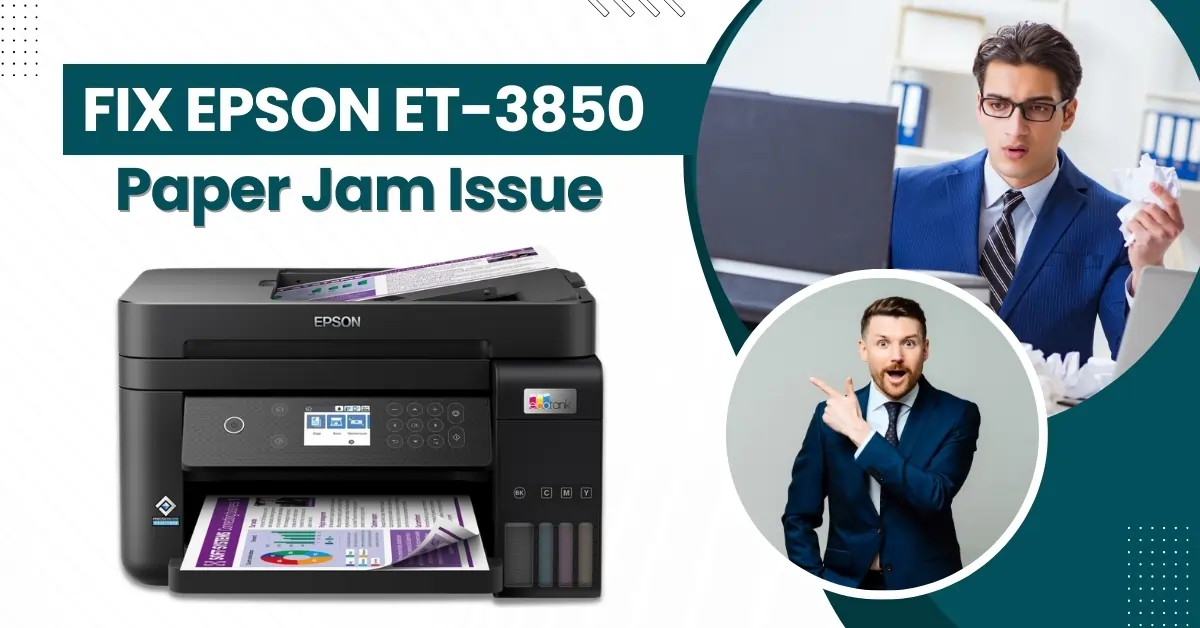
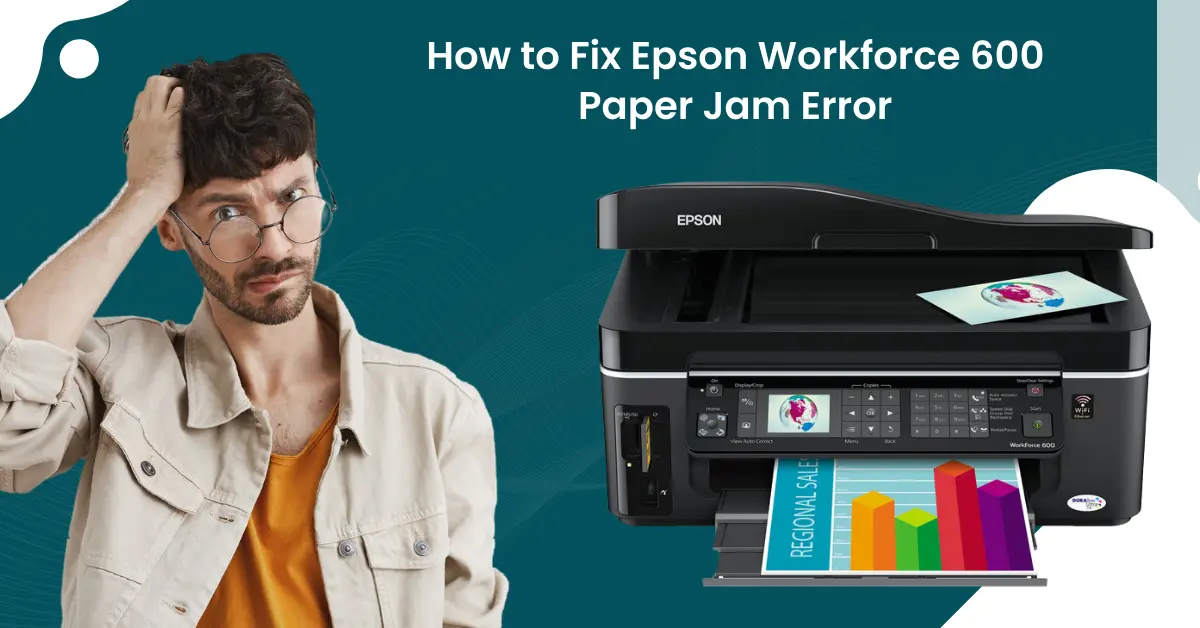
How to Clear Epson Printer Paper Jams Fast: Expert Tips
When an Epson printer stalls with a paper jam, frustration can rise faster than the ink level. The good news is that most jams are caused by simple, preventable factors, and a quick, systematic approach can have the device humming again in minutes. Below are practical steps you can try before calling tech support, plus a handful of expert habits that keep jams at bay.
Identify the Jam Location Before You Pull Anything
The first instinct is to yank out the paper, but doing so without knowing where the jam sits can tear the sheet and make the problem worse. Open the rear access panel, the front scanner lid, and any side trays. Look for a visible tear, crumpled edge, or a piece that’s stuck inside the rollers.
- Rear panel: Most Epson models have a removable cover that reveals the paper path.
- Scanner lid: The jam can hide under the glass, especially if you use thicker media.
- Tray and feeder: Check the paper guides; misaligned guides often cause the sheet to skew.
Once you spot the offending piece, gently pull it straight out, keeping the direction of removal consistent with the paper flow.
Common Causes and How to Address Them
Understanding why jams happen helps you stop them from recurring.
Paper Quality Mismatch
Epson printers are calibrated for specific weights and finishes. Using overly thick cardstock, glossy photo paper, or low‑grade copy paper can jam the feed rollers. Always match the paper type to the printer’s specifications, which you can find on the user manual or Epson’s support site.
Improper Loading
Even the right paper will misfeed if it’s not loaded correctly. Make sure the stack is snug against the guide but not compressed. A stack that’s too tight creates friction; one that’s too loose allows the paper to wander.
Dust and Debris on Rollers
Over time, toner dust and paper fibers accumulate on the rollers, reducing grip. A quick clean with a lint‑free cloth slightly dampened with water (or a 70 % isopropyl solution for stubborn buildup) can restore traction.
Humidity and Static
In dry environments, static electricity can cause sheets to cling together, leading to multiple‑sheet feeds. A brief blast of compressed air or a quick run of an anti‑static spray can neutralize the charge.
Step‑by‑Step Quick Fix Routine
Keep this checklist handy; it takes less than five minutes.
- Turn the printer off and unplug it. Power loss releases tension on the feed mechanism.
- Open all access doors and remove any visible paper. Pull slowly; if the paper resists, stop and re‑examine the path.
- Inspect the rollers for dust. Wipe them gently; avoid soaking the rollers.
- Check the paper tray: adjust the guides, fan the paper to separate sheets, and reload.
- Re‑insert the power cord, turn the printer on, and run a test page.
If the printer still reports a jam, repeat the inspection—sometimes a tiny fragment hides in a corner you missed the first time.
Expert Tips for Long‑Term Jam Prevention
Even the most diligent users encounter occasional snags, but these habits dramatically lower the odds.
- Store paper in a dry, flat location. Moisture warps sheets, causing uneven feeding.
- Rotate paper stock. Using the same box for months can lead to dust buildup; switch to a fresh pack periodically.
- Use the printer’s cleaning cycle. Many Epson models include a maintenance routine that cleans the rollers automatically.
- Upgrade to Epson‑recommended paper. Third‑party brands work, but OEM paper is formulated for optimal feed and ink absorption.
- Schedule regular maintenance. A quick wipe‑down every few weeks keeps debris from becoming a chronic issue.
When to Call a Professional
Most paper jams resolve with the steps above, but a few scenarios merit a service visit.
- Repeated jams on different paper types despite thorough cleaning.
- Unusual noises such as grinding or clicking, indicating possible roller wear.
- Paper tearing inside the printer, which may signal a broken feed mechanism.
In those cases, contact Epson support or an authorized service center. Attempting internal repairs without proper tools can void the warranty.
Frequently Asked Questions
Why does my Epson printer jam only when printing double‑sided documents?
Duplex printing adds an extra paper path, increasing the chance of misalignment. Ensure the duplex unit is clean, the paper guides are correctly set for both sides, and the paper weight is within the duplex specifications.
Can I use recycled paper without causing jams?
Recycled paper varies in thickness and texture. If you choose it, pick a brand that lists compatibility with inkjet printers and test with a small batch first.
Is there a way to reset the jam sensor?
Most Epson printers clear the jam indicator automatically once the obstruction is removed and the printer powers back on. If the error persists, a full power cycle (unplug for a minute) often resets the sensor.
Do firmware updates help reduce paper jam incidents?
Firmware can improve paper‑feed algorithms and introduce new diagnostics. Keeping your printer’s firmware up to date is a good preventive measure.