All You Need to Know About Safe Mode on Samsung Phones
Safe Mode on Samsung phones is a built‑in troubleshooting feature that boots the device with only the essential system apps running. It’s a handy way to isolate problems caused by third‑party software, and you’ll see the term pop up in forums whenever someone’s app misbehaves. If you’ve ever wondered why your Samsung screen freezes or battery drains unusually fast, stepping into Safe Mode can give you a clear picture of whether an installed app is at fault.
What Exactly Is Safe Mode?
In Safe Mode, Android disables all user‑installed applications, leaving only the core services that ship with the operating system active. This stripped‑down environment eliminates background processes that might be interfering with normal operation. Samsung devices follow the same principle, but they also hide certain Samsung‑specific tweaks—like Bixby or Samsung Pay—until you exit the mode.
Why Samsung Includes Safe Mode
Samsung’s custom One UI adds a layer of features on top of Android, which is great for everyday use but can occasionally clash with third‑party apps. Safe Mode serves as a diagnostic sandbox:
- Identify problematic apps: If the phone behaves normally in Safe Mode, the issue likely lies with something you installed.
- Preserve data: Unlike a factory reset, Safe Mode doesn’t erase personal files or settings.
- Quick access: You can trigger it with a few button presses, even when the screen is unresponsive.
How to Enter Safe Mode on Most Samsung Phones
There are two common methods, and both work on recent Galaxy models such as the S23, Note 20, and A series:
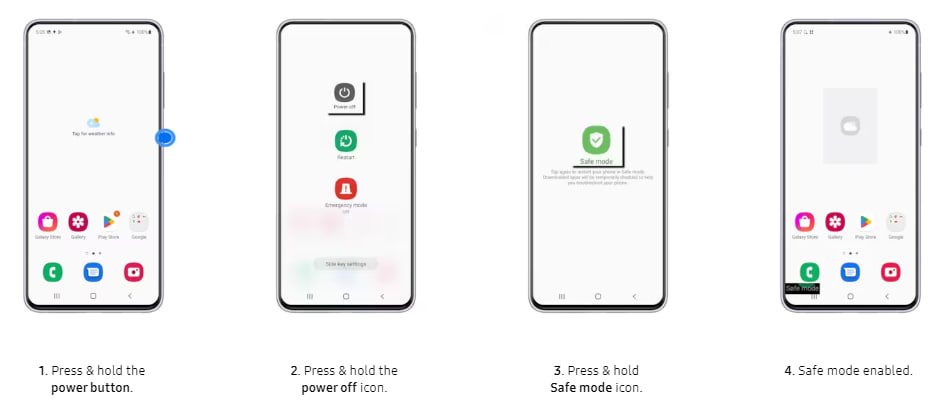
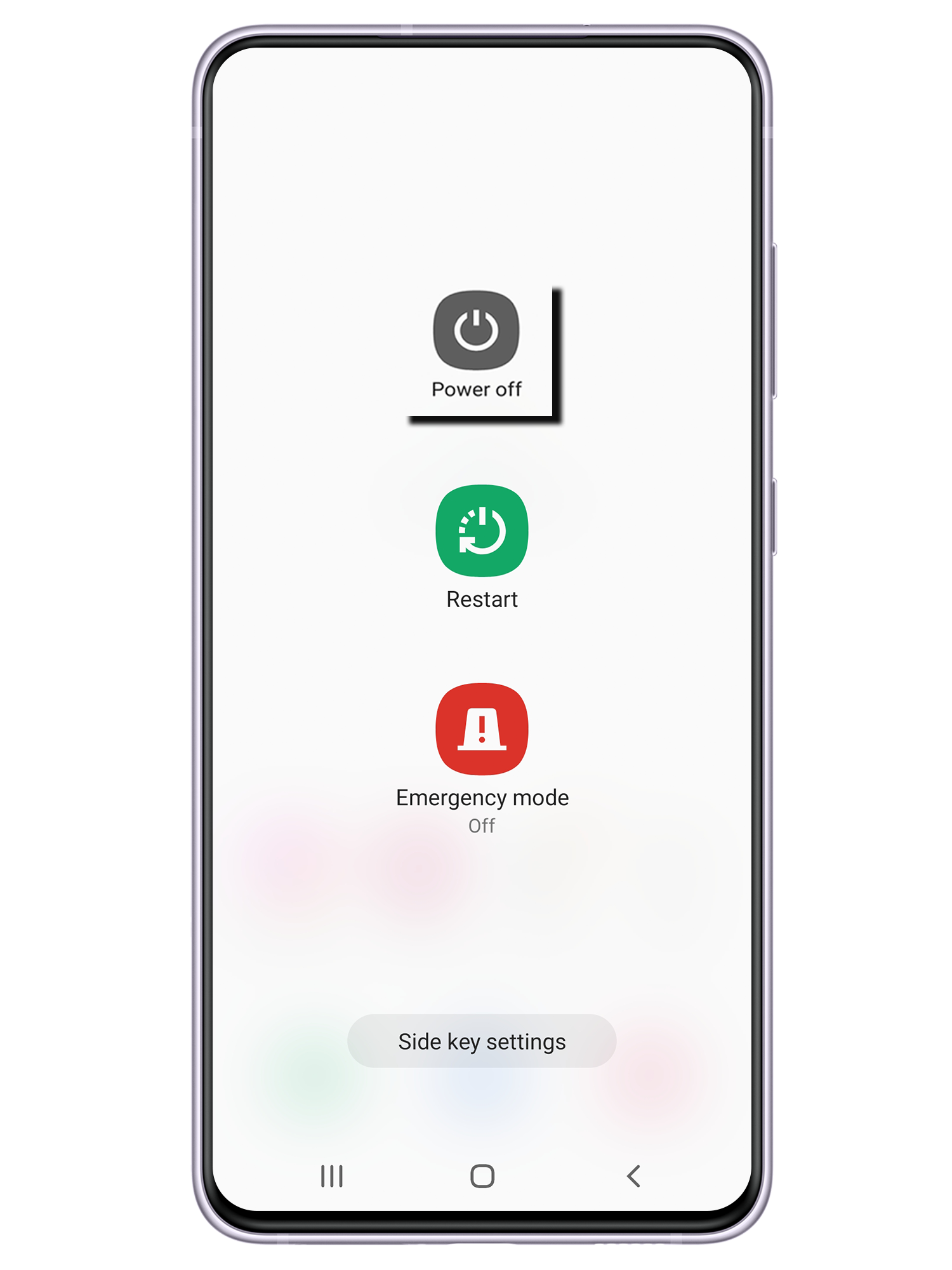
- Press and hold the Power button until the power‑off menu appears. Then tap and hold Power Off until a prompt asks if you want to restart in Safe Mode. Confirm, and the device will reboot with “Safe mode” displayed in a corner.
- If the screen is frozen, you can force a reboot by holding Power + Volume Down for about ten seconds. Once the device restarts, immediately press and hold Volume Down until it finishes booting; the Safe Mode badge should appear.
Exiting Safe Mode is even simpler—just restart the phone normally.
What Changes When You’re in Safe Mode
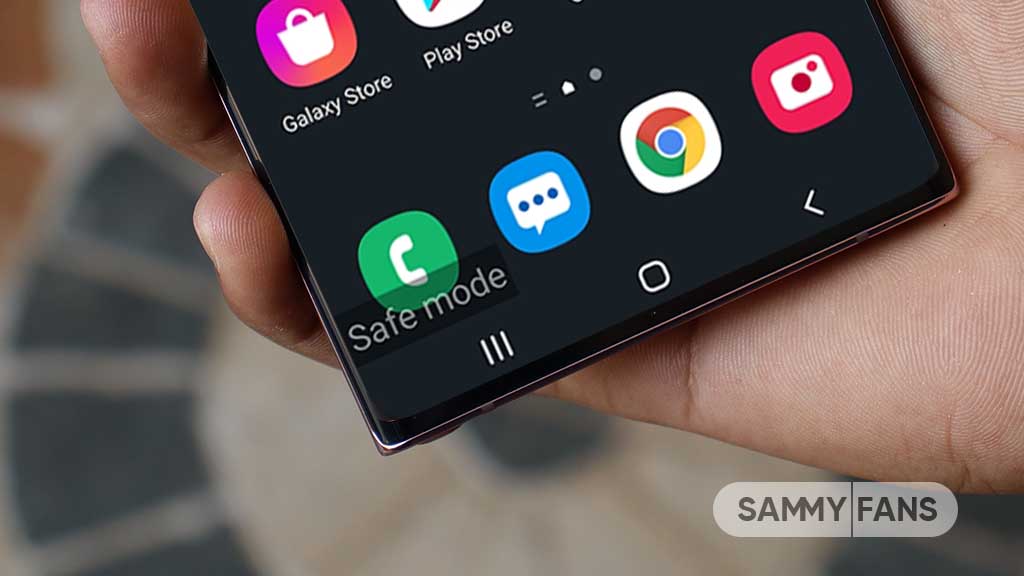
Visually, you’ll notice a small “Safe mode” label in the lower‑left corner of the screen. Functionally, several things happen behind the scenes:
- All third‑party apps are disabled, meaning you can’t open them from the app drawer.
- Widgets that belong to disabled apps disappear, cleaning up the home screen.
- System updates and Samsung‑specific services like Samsung Cloud still run, because they’re part of the OS package.
- Network connectivity remains intact, so you can browse the web or check email while troubleshooting.
Because the core system remains active, you can still make a phone call, send a text, or use the camera—useful for confirming whether the issue is truly app‑related.
When to Use Safe Mode
Safe Mode isn’t a daily feature; it shines in specific scenarios:
- App crashes: If a game or social media app closes abruptly, booting into Safe Mode can reveal whether that app is the culprit.
- Battery drain: Unusual power consumption often stems from background services. Safe Mode helps you see if the drain persists without third‑party apps.
- Unexpected pop‑ups or ads: Malicious adware usually hides in downloaded apps. In Safe Mode, those pop‑ups vanish, confirming the source.
- System sluggishness: When the UI lags, Safe Mode can show if the slowdown is hardware‑related or caused by a heavy app.
Steps to Resolve Issues Found in Safe Mode
Once you’ve confirmed that an app is causing trouble, you have a few options:
- Uninstall the offending app directly from Settings > Apps.
- Clear its cache and data, which can fix corrupt files without losing the app entirely.
- Check for updates—developers often release patches after a surge of bug reports.
- If multiple apps misbehave, consider resetting app preferences (Settings > General Management > Reset). This restores default permissions without a full factory reset.
After addressing the problem, restart your device normally to return to the full Samsung experience.
Common Misconceptions About Safe Mode
Some users assume Safe Mode removes all Samsung‑specific features, but that’s not true. Bixby, Samsung Themes, and the Edge panel remain active because they’re integrated into One UI. Also, Safe Mode does not delete any personal data—your photos, messages, and settings stay exactly where they were before you entered the mode.
FAQ
Can I receive calls while my Samsung phone is in Safe Mode?
Yes. Safe Mode keeps the cellular radio functional, so incoming calls and texts work just like in normal operation.
Will Safe Mode affect my Wi‑Fi or mobile data connection?
No. Network connectivity is preserved, allowing you to browse the internet or stream music to verify if the issue is truly app‑related.
Is Safe Mode the same as a factory reset?
Not at all. A factory reset erases all user data and returns the phone to its original state, whereas Safe Mode merely disables third‑party apps while keeping your personal files intact.
What if my phone won’t boot into Safe Mode?
If the device fails to enter Safe Mode, try a hard reboot (Power + Volume Down) and repeat the steps. Persistent failure could indicate a deeper hardware problem that may require professional service.